 DuoCam
The right format makes a video look sharp where it will be watched, without filling your phone or overheating it. This guide explains every option in DuoCam's video format sheet (aspect ratio, quality, frame rate, codec, bitrate and time-lapse), recommends settings for TikTok, Reels, Shorts and YouTube, and covers the app settings that change how you record: sound, mirror, grid, volume keys and more.
Where to find the format settings
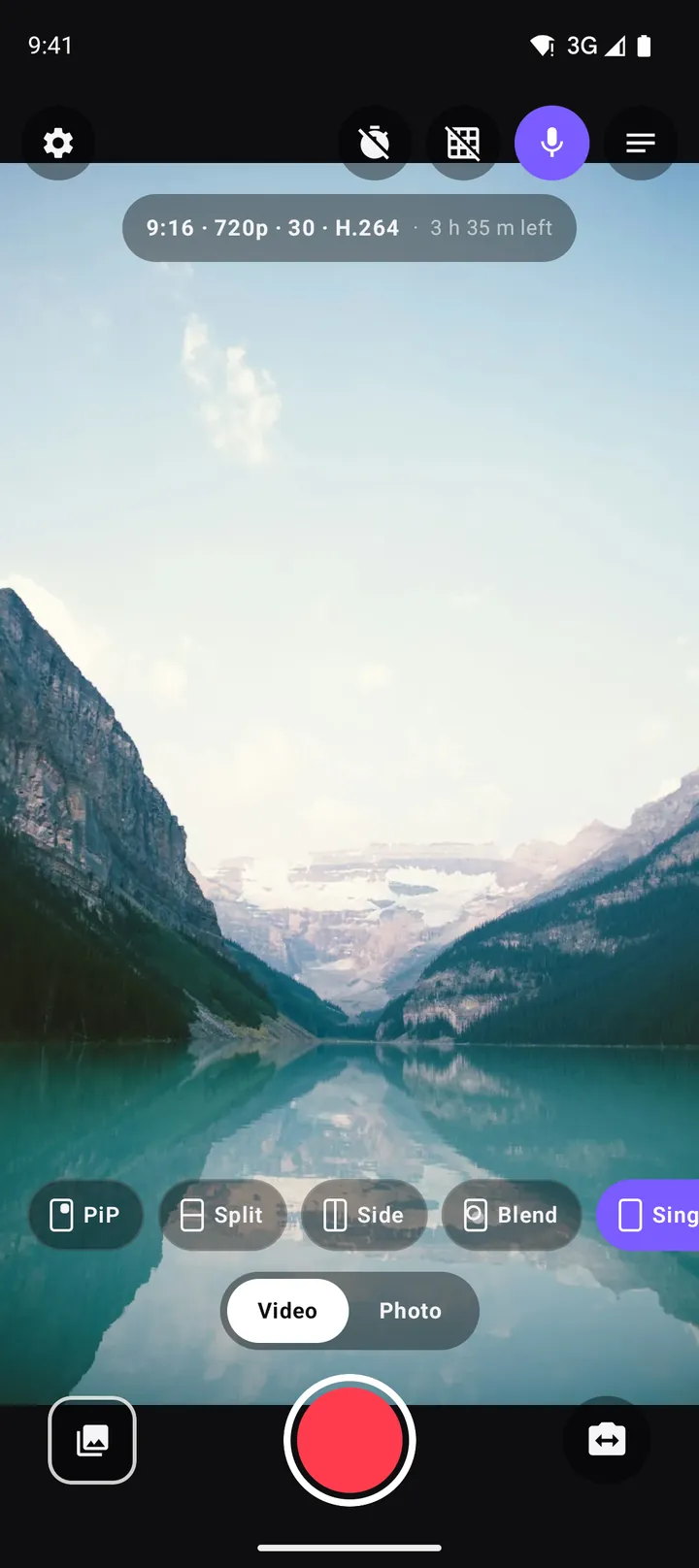
On DuoCam's record screen, the format pill at the top, which shows the current aspect ratio and quality, opens the Video format sheet. The format is fixed for the length of a take, so change it before you press record; while recording, the pill is replaced by the recording clock.
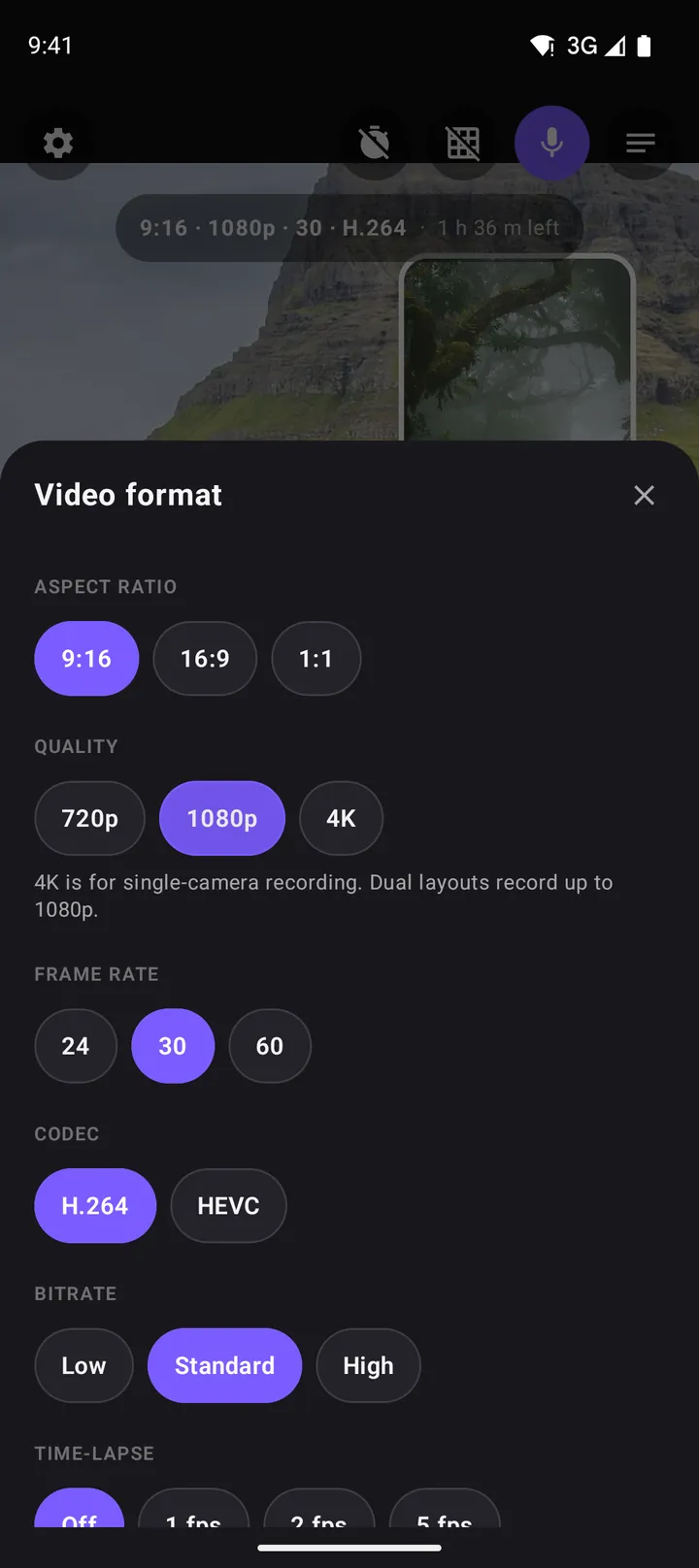
At the bottom of the sheet, DuoCam shows an estimate in megabytes per minute for the chosen size, so you can see the effect of each choice on storage before you record.
The free version records 9:16, 720p, 30 fps, H.264. DuoCam Pro unlocks the other options. If you pick Pro settings in the free version, they are kept for when you upgrade.
Aspect ratio: 9:16, 16:9 or 1:1
| Aspect | Shape | Best for |
|---|---|---|
| 9:16 | Vertical, full phone screen | TikTok, Instagram Reels and Stories, YouTube Shorts, WhatsApp status |
| 16:9 (Pro) | Horizontal, widescreen | YouTube, TVs, laptops, side-by-side layouts |
| 1:1 (Pro) | Square | Feeds that crop to a square, carousels, ads |
The aspect ratio also changes how the layouts look. In 9:16, the top-and-bottom Split gives two near-square halves, ideal for faces. In 16:9, Side by side gives two tall halves, the classic reaction look. Picture-in-picture works in all three.
Quality: 720p, 1080p or 4K
- 720p (free): small files, little heat, fast uploads. On a phone screen, a well-lit 720p video looks good, and social apps often compress uploads to a similar level anyway.
- 1080p (Pro): the sweet spot for most creators. Noticeably sharper on bigger screens and when viewers zoom in, with moderate file sizes. In split layouts, where each camera fills only part of the frame, the extra resolution matters most.
- 4K (Pro): the most detail, for landscapes and footage you will crop or edit later. 4K records with one camera: two camera streams at 4K are more than phones can handle. If you start a 4K take in a dual layout, DuoCam tells you that this take stays on one camera.
Some phones cannot encode every size. If the phone refuses a format, DuoCam says so and suggests a lower quality instead of failing silently.
Frame rate: 30 or 60 fps
30 fps is the standard for talking, vlogging and most social video. It looks natural, uses less storage and keeps the phone cooler. 60 fps (Pro) makes fast motion smoother, such as sports, pets running and panning shots, and lets you slow clips down to half speed in an editor. Like 4K, 60 fps records with one camera.
For dual camera videos, choose 30 fps. For a single-camera action shot, choose 60.
Codec: H.264 or HEVC
The codec decides how the video is compressed.
- H.264 (free) plays on practically everything: every phone, browser, TV, editor and social app. Choose it when you send videos to other people or are unsure.
- HEVC / H.265 (Pro) gives similar quality at a noticeably smaller file size, so you can record longer and upload faster. Most modern phones and platforms support it, but some older computers, players and editors cannot open it.
Bitrate: low, standard or high
Bitrate is how much data per second the video may use. More data keeps more detail, especially in hard scenes like leaves, water, rain, confetti and fast movement.
- Low: smallest files, fine for talking heads and chats.
- Standard: a balanced default for most scenes.
- High (Pro): the most detail, for scenes with lots of fine texture and for footage you will edit or colour later.
Time-lapse (Pro)
Time-lapse records a few frames per second and plays them back at normal speed, so minutes become seconds. DuoCam offers 1, 2 or 5 fps; the format sheet shows how many times faster the result plays. Time-lapse records no sound.
- 5 fps: busy streets, cooking, crafts, a room being tidied. Movement stays readable.
- 2 fps: clouds, crowds, a sunset over half an hour.
- 1 fps: the longest events: a full sunset, a tide, a long drive, a plant opening.
Put the phone on a tripod or a stable surface for time-lapse; any movement is multiplied in the result.
Recommended settings by platform
| Goal | Settings |
|---|---|
| TikTok, Reels, Shorts | 9:16 · 1080p (or 720p free) · 30 fps · H.264 · standard |
| YouTube video | 16:9 · 1080p · 30 fps · H.264 or HEVC · standard or high |
| Long vlog day, little storage | 9:16 · 720p · 30 fps · HEVC · standard |
| Landscape to edit later | 16:9 · 4K (one camera) · 30 fps · HEVC · high |
| Sports or pets, slow motion later | 9:16 or 16:9 · 1080p · 60 fps (one camera) · H.264 |
| Sending to family | 9:16 · 720p · 30 fps · H.264 · standard |
Storage and the time-left estimate
The record screen shows roughly how much more you can record at the current format, for example "1 h 55 m left". If free space runs low, DuoCam shows a warning with the minutes left; if it runs out during a take, the clip is stopped and saved, not lost. To free space, delete old clips in the in-app gallery (it removes the file from your phone) or move them to a computer.
App settings that affect recording
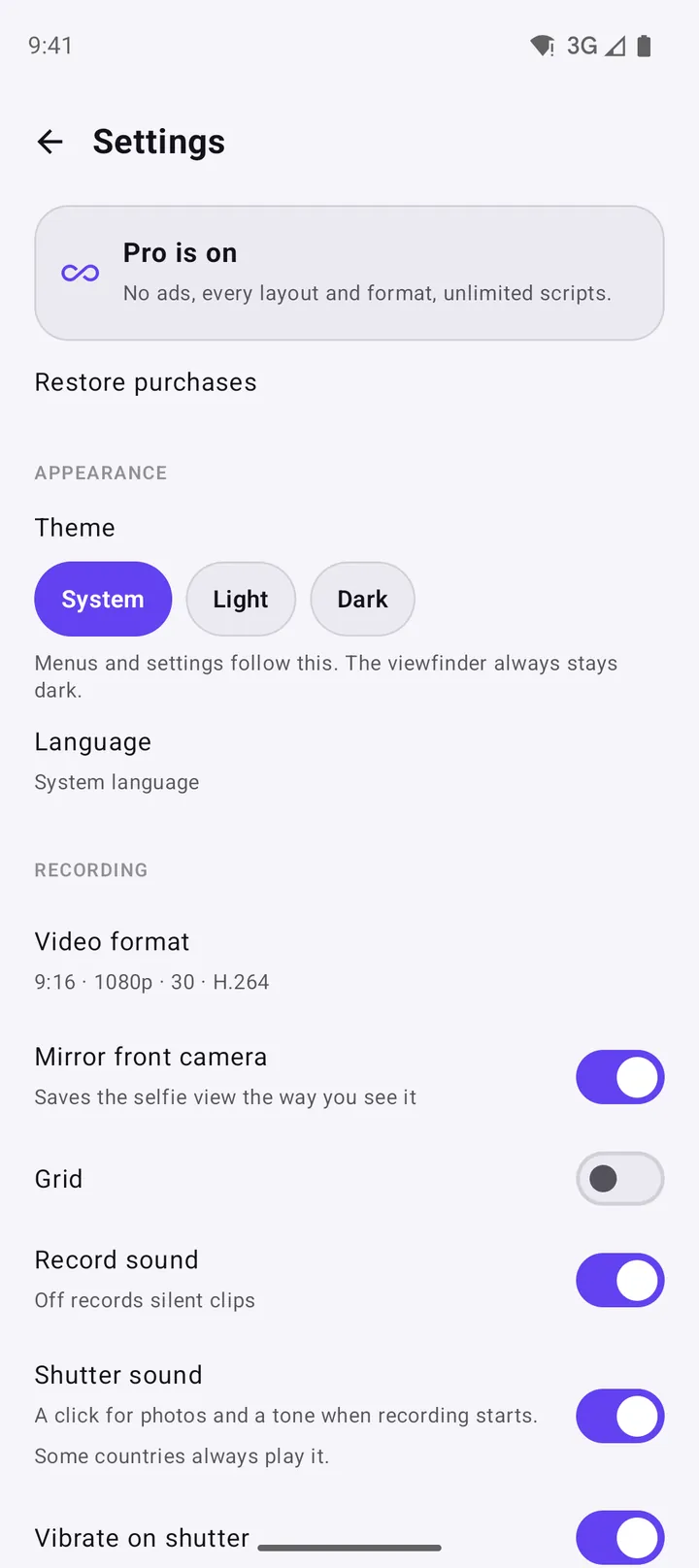
- Mirror front camera: save the selfie view as you see it, like a mirror.
- Grid: thirds lines over the viewfinder for level horizons and balanced framing.
- Record sound: off records silent clips, handy if you add music later.
- Volume keys take the shot: either volume key starts and stops recording or takes a photo.
- Shutter sound and vibrate on shutter: feedback when you record or take a photo. Some countries always play the shutter sound.
- Theme: system, light or dark for menus. The viewfinder always stays dark.
- Language: use the system language or choose one of the app's languages.
Settings also has the privacy options (usage and crash reports, ad privacy), Restore purchases for Pro, and Contact us for help.
Why dual video needs different settings
A dual camera recording does more work than a normal one: two sensors, two image streams, and a compositor that draws them into one frame before the encoder compresses it. That has two practical effects. First, heat and battery use go up, so the light, efficient formats (720p or 1080p at 30 fps) are the best choice for longer dual takes. Second, each camera fills only part of the final frame, so the overall resolution matters more than in a single-camera video: a 1080p split screen gives each half roughly the detail of a 720p single-camera video.
That is why the guidance in this article often says "1080p for quality, 720p for long sessions" and keeps 4K and 60 fps for single-camera shots.
Settings if you plan to edit
If your clips go into an editor before you post, choose 1080p with high bitrate so there is detail left after cropping and colour correction, and H.264 if your editor is older or runs on a computer without HEVC support. If you post straight from the phone, standard bitrate is enough: social apps compress uploads again anyway.
Quick answers: which setting should I change first?
- Video looks soft? Raise the quality to 1080p before touching the bitrate.
- Files too big? Switch to HEVC before lowering the quality.
- Phone too warm? Go back to 720p 30 fps and record shorter takes.
- Friends cannot play the video? Use H.264.
- Fast action looks choppy? Use 60 fps with one camera.
Free or Pro for formats?
The free format, 9:16 at 720p 30 fps H.264, is a sensible default for vertical social video and is light on the phone. Pro is worth it if you publish on YouTube or bigger screens (16:9, 1080p and 4K), shoot fast action (60 fps), want smaller files (HEVC), keep fine detail (high bitrate) or film long events (time-lapse). Pro also removes ads and unlocks every layout.
Frequently asked questions
What resolution does DuoCam record in the free version?
The free version records 9:16 vertical video at 720p, 30 fps, H.264, with no watermark and no time limit. Pro adds 1080p, 4K, 60 fps, 16:9 and 1:1, HEVC, high bitrate and time-lapse.
Why does 4K or 60 fps record only one camera?
Running two camera streams at 4K or 60 fps is more than phones can handle. DuoCam records those formats with one camera and tells you when a take stays on one camera.
Should I choose H.264 or HEVC?
H.264 for the widest compatibility, HEVC for smaller files at the same quality. Some older players and editors cannot open HEVC.
Can I change the format while recording?
No. The format is fixed for a take. Set it before you press record; you can still change the layout and swap cameras during the take.
How much storage does a minute of video use?
It depends on the format. The format sheet shows an estimate in MB per minute, and the record screen shows how much recording time is left.
Does time-lapse record sound?
No. Time-lapse records no sound, because the video plays many times faster than real time.
Which bitrate options are free?
Low and standard bitrate are free. High bitrate is part of DuoCam Pro, together with HEVC.
Try it on your phone. DuoCam is free on Google Play, with no watermark and no account. Your videos stay on your phone.
Get DuoCam on Google PlayKeep reading
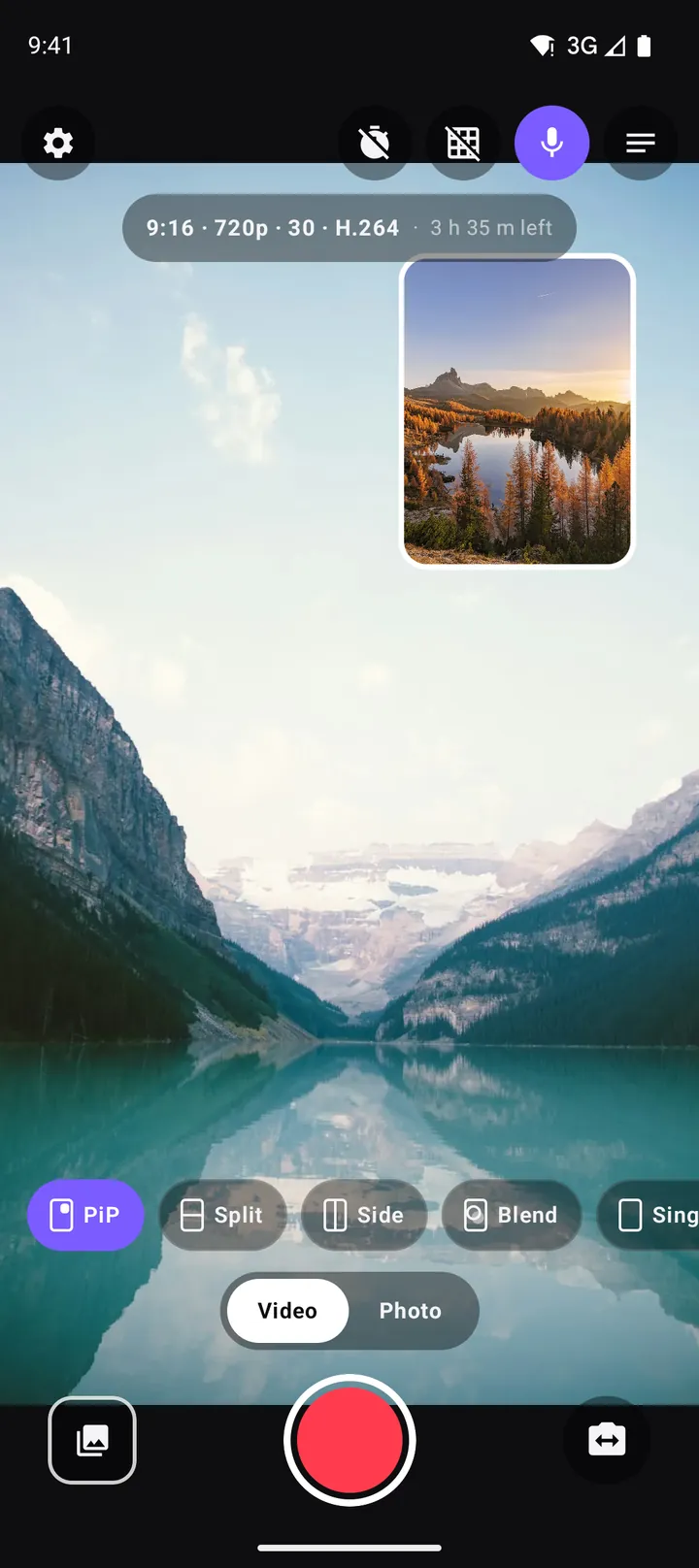
How to record with the front and back camera at the same time on Android
A step-by-step guide to recording both cameras at once on Android with DuoCam: picture-in-picture, split screen, dual photos, formats, the teleprompter and what to do if your phone runs one camera only.
How to vlog with one phone: the dual camera method
A practical guide to vlogging with just one Android phone: record yourself and the scene at once, plan shots, light and sound, battery and heat, and share-ready formats.
Which Android phones can record with both cameras at once? How to check, and what to do if yours cannot
Why some Android phones can record the front and back camera together and others cannot, how to check yours in seconds, what single-camera mode offers, and fixes for common dual camera recording problems.