 DuoCam
Recording both cameras at once depends on the phone, not only on the app. Android 11 introduced a standard way for phones to report which cameras can run together ("concurrent cameras"), and each manufacturer decides whether to support it. This guide explains how that works, how to check your phone with DuoCam in a few seconds, what you can still do on phones limited to one camera, and how to fix common problems such as "recording could not start".
How dual camera recording works on Android
Every camera on a phone is connected to an image processor that turns raw sensor data into pictures. Running two cameras at the same time means the processor, the memory and the power system must handle two full streams together, plus a video encoder. Some phones are designed and tested for that; others share hardware between the cameras in a way that only allows one at a time.
Since Android 11, phones can tell apps which combinations of cameras work together. This list is called the concurrent camera set. If the front and back cameras appear together in that set, an app such as DuoCam can open both and record them into one video. If the list is empty, the manufacturer has not enabled concurrent cameras, and no app can safely run both at once.
Some manufacturers include dual recording in their own camera app ("Director's view", "Dual video" and similar names) using private methods that are not available to other apps. That is why a phone can have a dual video mode in its built-in camera yet report no concurrent cameras to the Play Store apps.
Which phones support it?
Support varies by model and sometimes by software update, so a list of brand names would quickly be wrong. As a rough guide:
- Android 11 or newer is required for concurrent cameras. Phones on Android 8 to 10 can still use DuoCam with one camera at a time.
- Recent flagship and upper mid-range phones are the most likely to support it, because they have the processing power for two streams.
- Budget phones often do not, even when they are new.
- Tablets and foldables vary a lot; check the specific model.
The only reliable test is to try. DuoCam is free and checks your phone the moment it opens the camera.
How to check your phone in 10 seconds
- Install DuoCam from Google Play and allow the camera.
- Look at the viewfinder. If you see two pictures, for example your face in a small window over the back camera's view, your phone supports dual recording.
- If you see a banner saying "This phone records one camera at a time", it does not. Tap Why? to see the reason DuoCam detected.
The reason is one of three:
- No concurrent camera pair: Android reports no front-and-back pair that works together.
- Only one camera: the device has a single camera, as some tablets do.
- The cameras did not start together: the phone reported support, but opening both failed. DuoCam switches to one camera so you can keep recording.
What you can still do with one camera
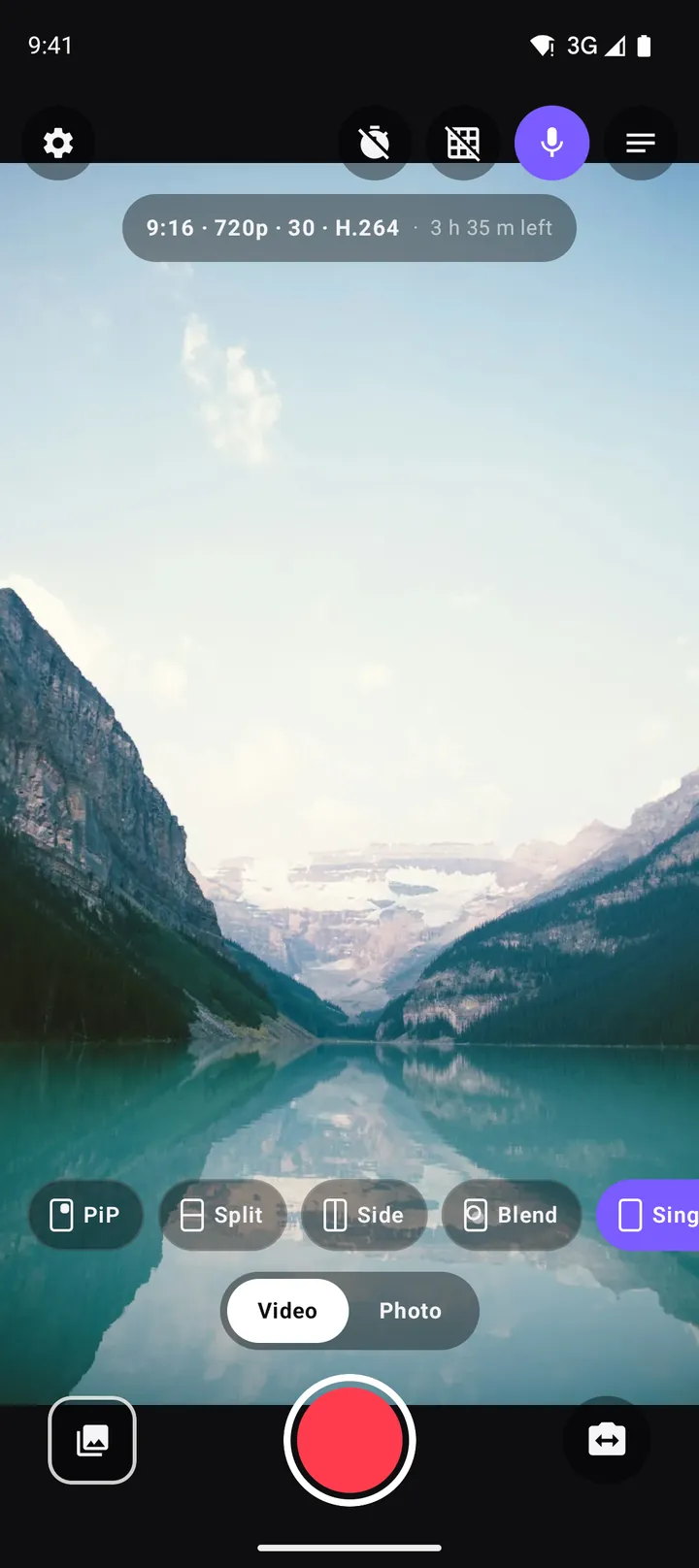
On phones without concurrent cameras, DuoCam is still a full camera app:
- Record and swap: record one camera and tap swap to switch between front and back.
- Photos: take photos with either camera.
- Teleprompter: read your script while you record. See the teleprompter guide.
- Every format: 720p for free, and with Pro 1080p, 4K, 60 fps, HEVC, high bitrate and time-lapse.
- A photo or clip as the inset: choose an image or a video from your gallery, and it plays in the second window, muted and looped, while the camera records. You get a picture-in-picture or split screen look with one live camera, for example your face next to a photo of the place you are talking about, or a reaction next to a clip you recorded earlier. Nothing leaves your phone.
If your phone should support dual recording but DuoCam says it does not, use Report this device in that sheet. It sends your phone model and Android version through the in-app contact form, which helps us find manufacturer quirks.
Troubleshooting dual camera recording
"The camera could not start"
Another app is probably using the camera, such as a video call, a scanner or a screen recorder. Close it and tap Try again. Restarting the phone releases a camera that another app did not let go of.
"Recording could not start" or "Recording failed"
The microphone or the encoder may be busy, or the format may be too heavy for the phone. Close apps that use the microphone (calls, voice recorders), and try 720p with H.264. If DuoCam says the phone cannot record a size with these settings, choose a lower quality.
A 4K or 60 fps take shows only one camera
That is expected. 4K and 60 fps record with one camera because two streams at that size are more than phones can handle. Use 1080p 30 fps for dual layouts. The settings guide has recommended combinations.
The phone gets warm and recording stops
Two cameras and an encoder are heavy work. DuoCam warns you when the phone is getting hot and, if it gets hotter, stops and saves the recording before Android has to shut the camera down. Take a break, remove a thick case, keep the phone out of direct sun, and use 720p for long recordings.
The video has no sound
Check that the microphone is on on the record screen, that Record sound is on in Settings, and that DuoCam may use the microphone in Android's Settings → Apps → DuoCam → Permissions. Time-lapse never records sound.
A video does not appear in my gallery
Look in Movies/DuoCam; some gallery apps take a moment to show new files. On Android 9 and older, allow storage access when DuoCam asks.
The small window looks blurry
The inset shows a camera at a smaller size, so it has fewer pixels. Make it a little bigger with a pinch, record at 1080p (Pro), and clean the front camera lens: it gets fingerprints all the time.
Recording stopped and saved by itself
Storage ran low, or the phone got too hot. DuoCam saves the clip in both cases. If the app was closed during a take, it recovers the clip the next time it opens.
Still stuck?
Open Settings → Contact us in DuoCam. Your message is sent with the technical details we need (phone model, Android version, app version and the camera capabilities the phone reports), so we can answer quickly. The support page lists more answers.
Buying a phone for dual camera video?
If dual recording matters to you and you are choosing a new phone, a few checks help before you buy:
- Try it in a shop if you can: install a free dual camera app like DuoCam on a demo unit and see whether two pictures appear.
- Search for the model with "concurrent camera" to see what other buyers report, and check that the phone runs Android 11 or newer.
- Prefer models with good update support. Manufacturers sometimes add or fix camera features in later updates.
- Look at the front camera. In dual video your face is half the picture, so a good selfie camera matters as much as the main one.
Keep the phone and the app up to date
Camera behaviour depends on the phone's software. A system update can add concurrent camera support, fix a camera that does not start, or improve the front camera. DuoCam updates add workarounds for specific phones as we learn about them, which is why device reports through Report this device and Contact us are so useful.
What DuoCam checks, and what it does not
To decide whether your phone can record two cameras, DuoCam asks Android which camera combinations the phone supports. That check happens on the phone. Nothing is uploaded, and the camera pictures never leave the device. Device details are only sent if you choose to send a report or a message through Contact us, and the form tells you exactly what is included before you send it.
Frequently asked questions
Why can't my phone record the front and back camera at the same time?
Your phone's manufacturer has not enabled concurrent cameras for apps. It is a hardware and software capability of the phone, and no app or setting can switch it on.
Which Android version is needed for dual camera recording?
Android 11 or newer, plus a phone whose manufacturer supports concurrent front and back cameras. On older versions DuoCam records one camera at a time.
My phone's own camera has a dual video mode. Why doesn't DuoCam?
Some manufacturers use private methods in their own camera app that are not available to other apps. Unless the phone reports concurrent cameras to Android, third-party apps cannot run both cameras together.
How do I know if my phone supports dual recording?
Open DuoCam. If you see two camera pictures in the viewfinder, it does. If a banner says the phone records one camera at a time, tap Why? to see the reason.
Can I make a picture-in-picture video on a phone without dual camera support?
Yes. Choose a photo or clip from your gallery as the inset. It plays in the second window, muted and looped, while your live camera records.
Why does 4K record only one camera?
Two camera streams at 4K or 60 fps are more than phones can handle, so those formats record with one camera. Use 1080p or 720p at 30 fps for dual layouts.
Does DuoCam work on Android 8, 9 or 10?
Yes. DuoCam runs on Android 8.0 and newer. On versions older than Android 11 it records one camera at a time, with every other feature available.
Try it on your phone. DuoCam is free on Google Play, with no watermark and no account. Your videos stay on your phone.
Get DuoCam on Google PlayKeep reading
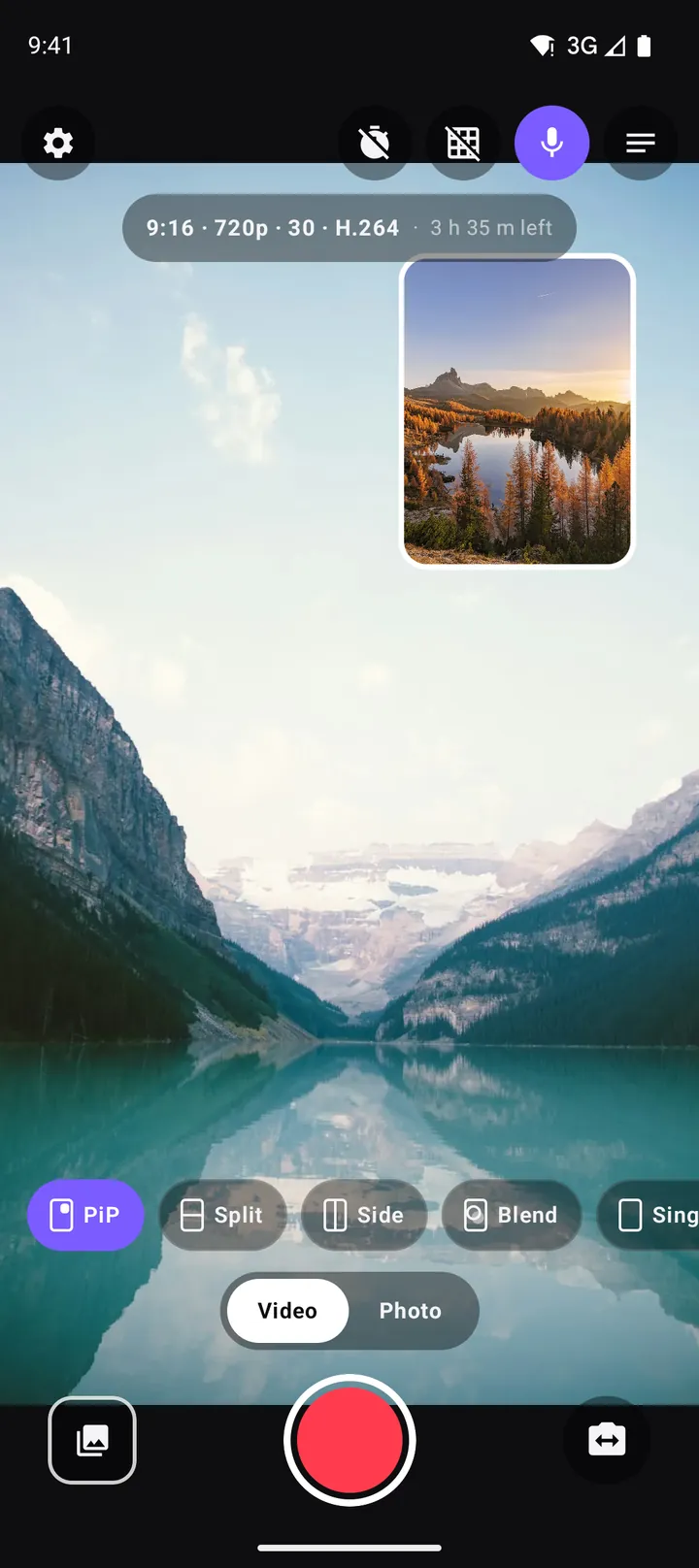
How to record with the front and back camera at the same time on Android
A step-by-step guide to recording both cameras at once on Android with DuoCam: picture-in-picture, split screen, dual photos, formats, the teleprompter and what to do if your phone runs one camera only.
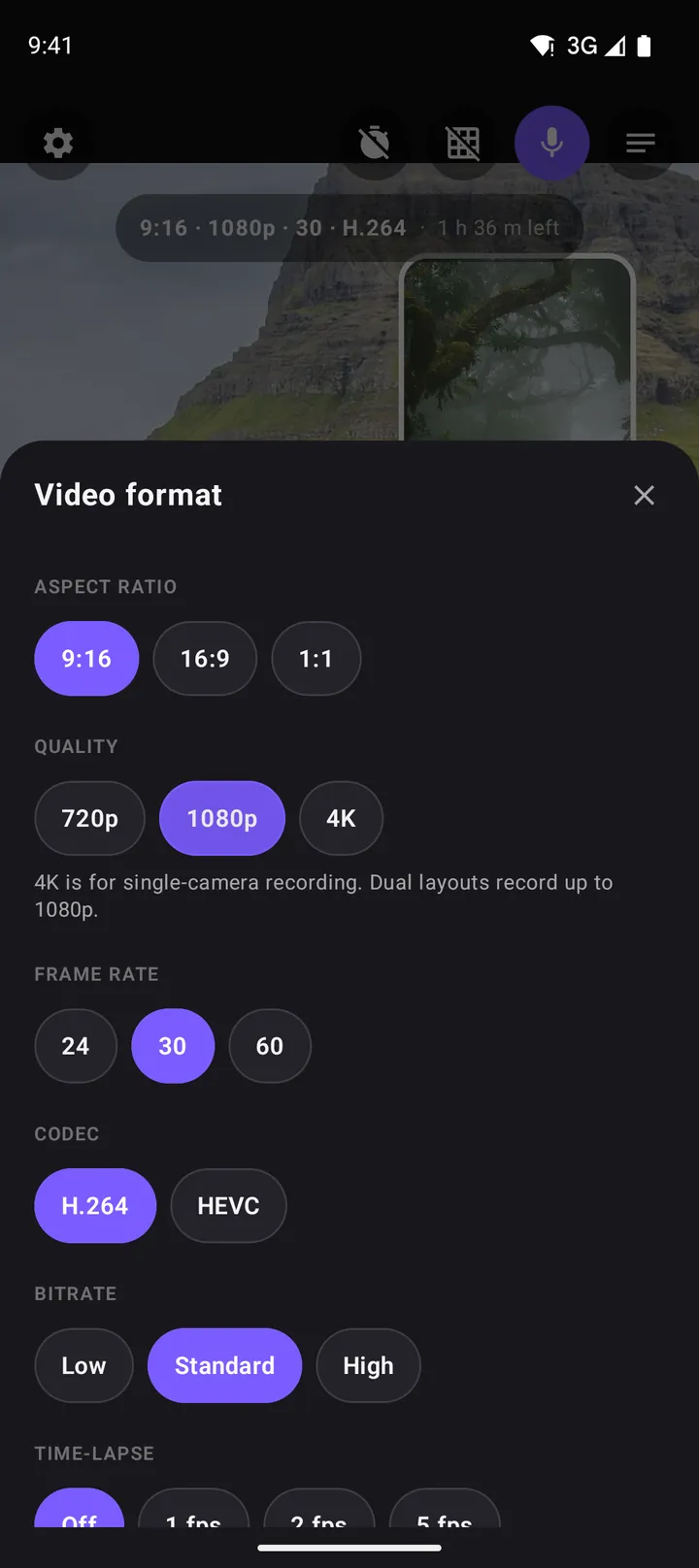
The best video settings for dual camera recording: resolution, frame rate, codec and more
Which aspect ratio, resolution, frame rate, codec and bitrate to choose for dual camera video on Android, plus time-lapse, file sizes, storage and the DuoCam settings that matter.
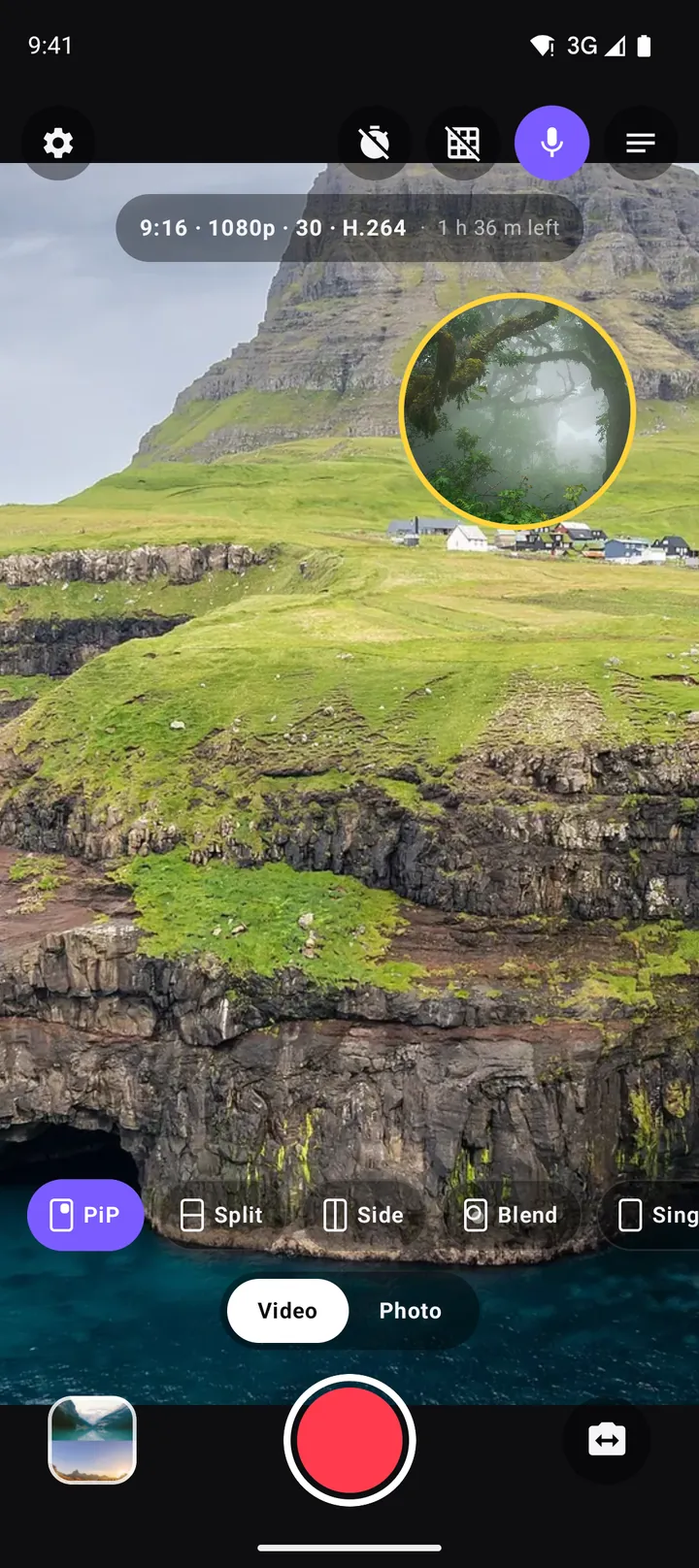
Picture-in-picture video on Android: how to record a PiP vlog in one take
How to record picture-in-picture video on Android with both cameras at once: moving and resizing the window, rounded, square and circle shapes, borders, swap, mirror and framing tips.