 DuoCam
Most Android camera apps let you use one camera at a time: you flip between the selfie camera and the main camera, but you never get both in the same shot. DuoCam records the front and back cameras at the same time into one ordinary MP4, in picture-in-picture, split screen or (with Pro) side by side and Blend. This guide walks through the whole flow, from the first launch to a finished video in your gallery, and explains what to do on phones that can only run one camera.
Why record both cameras at once?
A normal phone video shows one side of the story. You film the view, or you film yourself, and the audience has to imagine the other half. Recording the front and back cameras together closes that gap: viewers see what you see and how you react to it, in the same moment, without any editing.
That simple idea covers a surprising number of uses:
- Travel and walk-and-talk vlogs. Show the street, the mountain or the market in the main frame while your face sits in a small window, so you can narrate without turning the phone around.
- Reaction videos. Film a screen, a game, a gift being unwrapped or a first taste of food, with your reaction recorded in sync. There is nothing to line up afterwards.
- Tutorials and reviews. Point the main camera at your hands, a product or a recipe while you explain from the front camera.
- Family moments. Record the kids blowing out candles and keep yourself in the shot for once.
- Interviews and two-person talks. Hold the phone between two people and capture both faces in split screen.
Before dual recording, the usual workaround was two phones, or one phone filming twice, and a video editor to stitch the clips together and sync the audio. That takes time and rarely lines up perfectly. A dual camera app does it live, in one file, at the moment you press record.
Step 1: install DuoCam and allow the camera
DuoCam is free on Google Play. It needs no account and no sign-in. When you open it for the first time, a short introduction shows what the app does, then Android asks for permission to use the camera. Allow it: DuoCam cannot show a viewfinder without it. The first time you start a recording, Android also asks for the microphone, so your videos have sound. If you prefer silent clips, you can turn the microphone off on the record screen at any time, and DuoCam will tell you that it is recording without sound.
Everything you record is saved on your phone: videos in Movies/DuoCam and photos in Pictures/DuoCam. Nothing is uploaded, and your gallery app sees the files like any other video.
Step 2: choose a layout
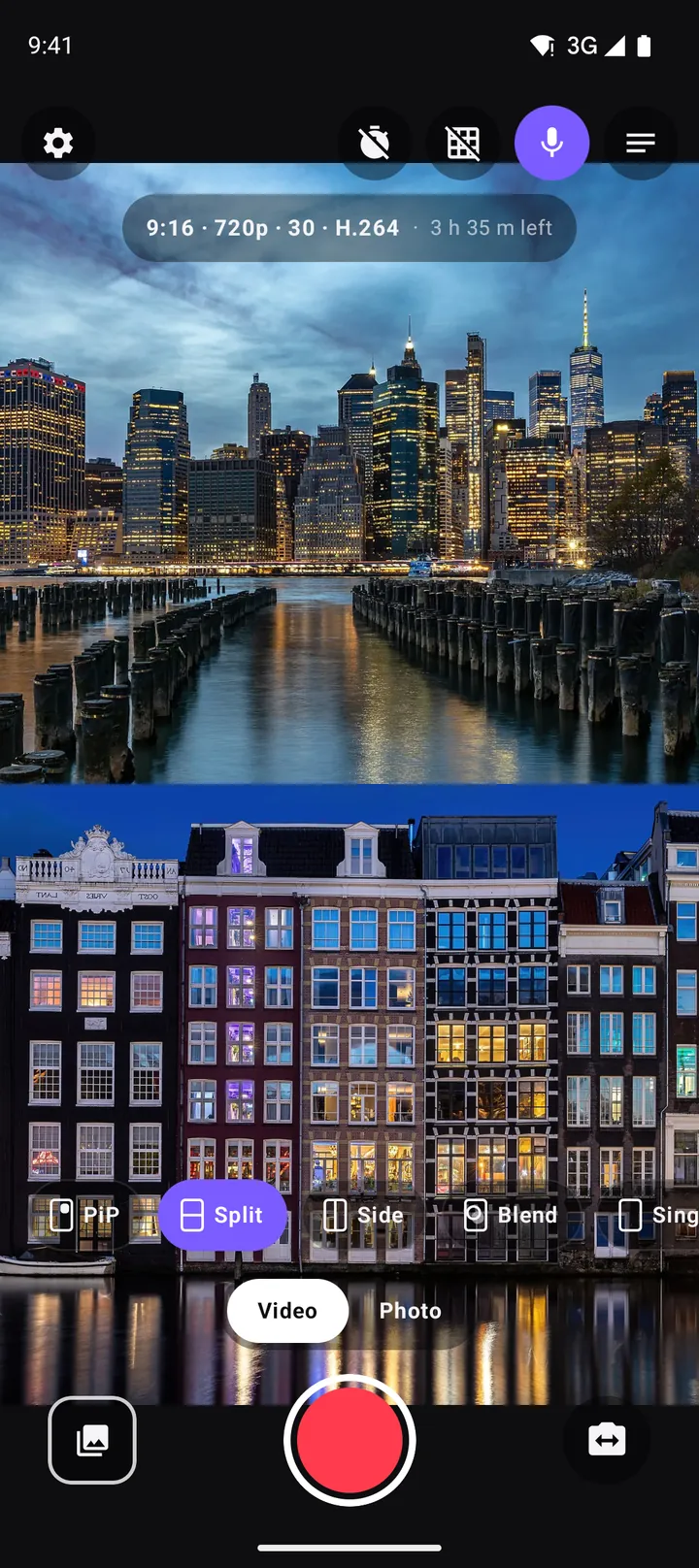
Along the bottom of the viewfinder you will find the layout chips. Each one decides how the two cameras share the frame, and what you see in the viewfinder is exactly what ends up in the video.
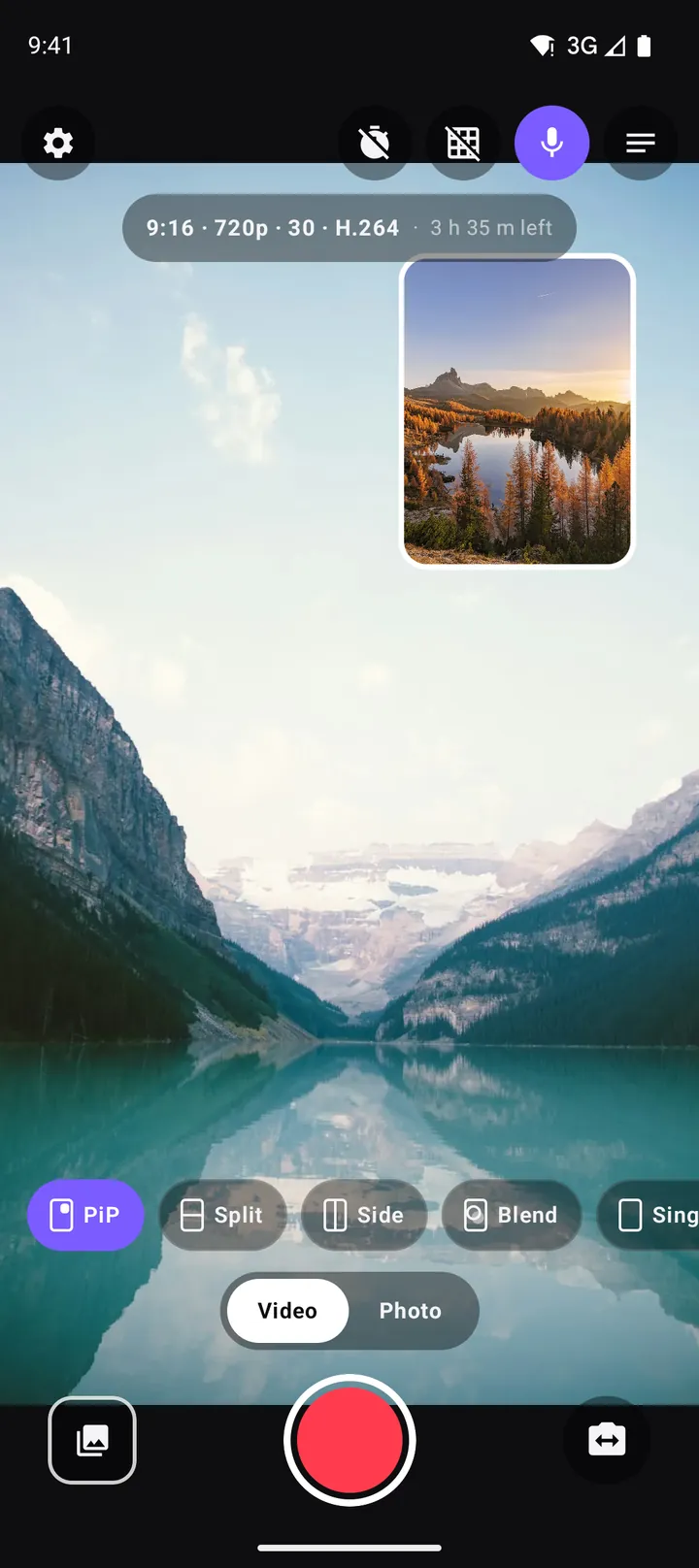
- PiP (free). One camera fills the frame and the other sits in a small window. Drag the window to move it, pinch it to resize it, and let go to snap it to the nearest corner. This is the classic vlog look.
- Split (free). The two cameras share the frame equally, top and bottom. It works best for conversations, reactions and before-and-after shots where both halves matter.
- Side (Pro). The two cameras sit left and right. It suits wide 16:9 videos and reaction formats people know from streaming.
- Blend (Pro). Both cameras mixed into one see-through double exposure, for music videos, moods and creative edits.
You can switch layouts while you record. Since version 1.1, layout changes and camera swaps crossfade smoothly, in the preview and in the saved video, so a change mid-take looks like a deliberate edit instead of a jump cut. The split screen guide and the picture-in-picture guide go deeper into each layout.
Step 3: swap, mirror and frame the shot
The swap button changes which camera is big. In PiP, it decides whether your face or the scene fills the frame; in Split, it changes which camera sits on top. Tap it before you start, or during a take to cut between the two views.
Mirror flips the front camera horizontally so the saved video looks the way you see yourself in the viewfinder, like a mirror. Many people find that more natural for selfie video; turn it off if you hold up text or a logo that must read the right way round.
A few framing tools help you get a clean shot:
- Tap to focus on anything in the viewfinder. A focus ring appears and a sun slider lets you brighten or darken the shot.
- Long-press to lock focus and exposure (AE/AF lock), so the picture does not pump when something moves through the frame. See the exposure guide.
- Pinch to zoom the main camera.
- Grid lines help you keep the horizon level and place your subject on the thirds.
- Torch lights up the back camera in dark rooms.
Step 4: press record
When the shot looks right, press the big record button. Both cameras record into a single MP4, with the layout, the window position and any swaps exactly as you saw them. A red clock at the top shows how long you have been recording. Press the button again to stop: the video is saved straight away, and a short message confirms it was saved to Movies/DuoCam.
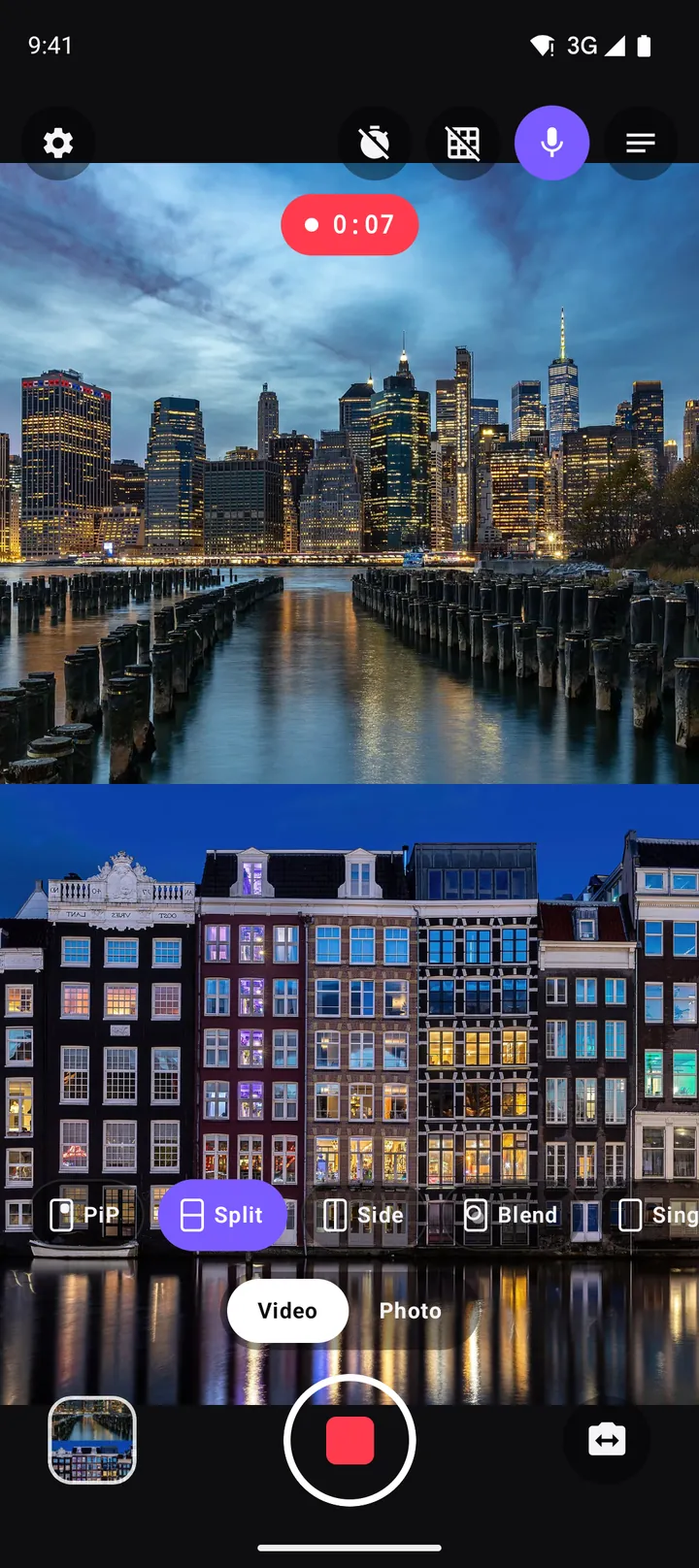
Some extras make recording alone easier:
- Timer. Choose a 3-second or 10-second countdown to get into position. No full-screen ad ever appears during the countdown or while recording.
- Volume keys. In Settings you can let either volume key start and stop recording, which is handy with the phone on a tripod or a selfie stick.
- Storage estimate. A small label such as "1 h 55 m left" shows roughly how much more you can record at the current format. If storage runs very low during a take, DuoCam stops and saves the clip rather than losing it.
- Heat protection. Two cameras and a video encoder are heavy work. If the phone gets hot, DuoCam warns you first and, if it gets hotter, stops and saves the recording safely.
There is no time limit and no watermark, in the free version or in Pro.
Step 5: take a dual photo
Switch the Video/Photo toggle to Photo and the record button becomes a shutter. A dual photo captures both cameras in one JPEG, in the same layout as the viewfinder, and saves it to Pictures/DuoCam. It is a great way to capture a view and the people enjoying it in one picture. Read more in the dual photo guide.
Step 6: find, play and share your videos
Tap the gallery thumbnail to open My clips, the in-app gallery. It lists everything DuoCam has made, newest first. Open an item to play it, share it to any app, open it in your Photos app or delete it. Deleting removes the file from your phone, not just from DuoCam, so the app asks you to confirm. Uninstalling DuoCam does not delete your videos.
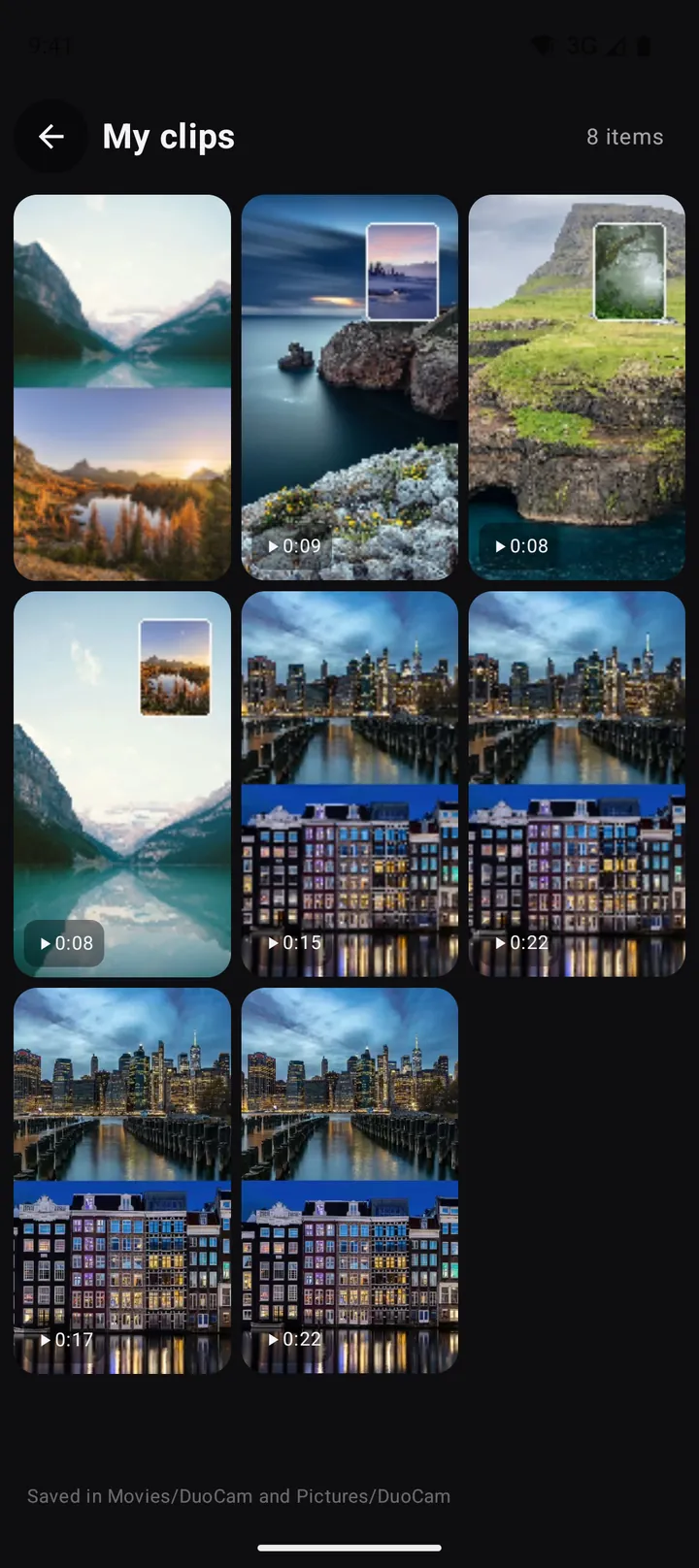
Because the result is a standard MP4 with H.264 video by default, it plays and uploads anywhere: YouTube Shorts, Instagram Reels, TikTok, WhatsApp, or a desktop editor if you want to trim it.
Choosing a format
The format pill at the top of the viewfinder opens the video format sheet. The free version records 9:16 vertical video at 720p, 30 frames per second, H.264, which is the right size for Shorts, Reels and TikTok and plays everywhere. DuoCam Pro adds 16:9 and 1:1, 1080p, 60 fps and 4K, HEVC for smaller files, a high bitrate option and time-lapse. Note that 60 fps and 4K record with one camera, because two camera streams at that size are more than phones can handle. The video settings guide explains each option and when to pick it.
If your phone can only run one camera
Recording both cameras at once is a hardware feature. The phone's camera system has to be able to stream from the front and back sensors together, and Android has to report that pair as working. Many phones have it, but not all, including some recent and expensive ones. No app can switch it on.
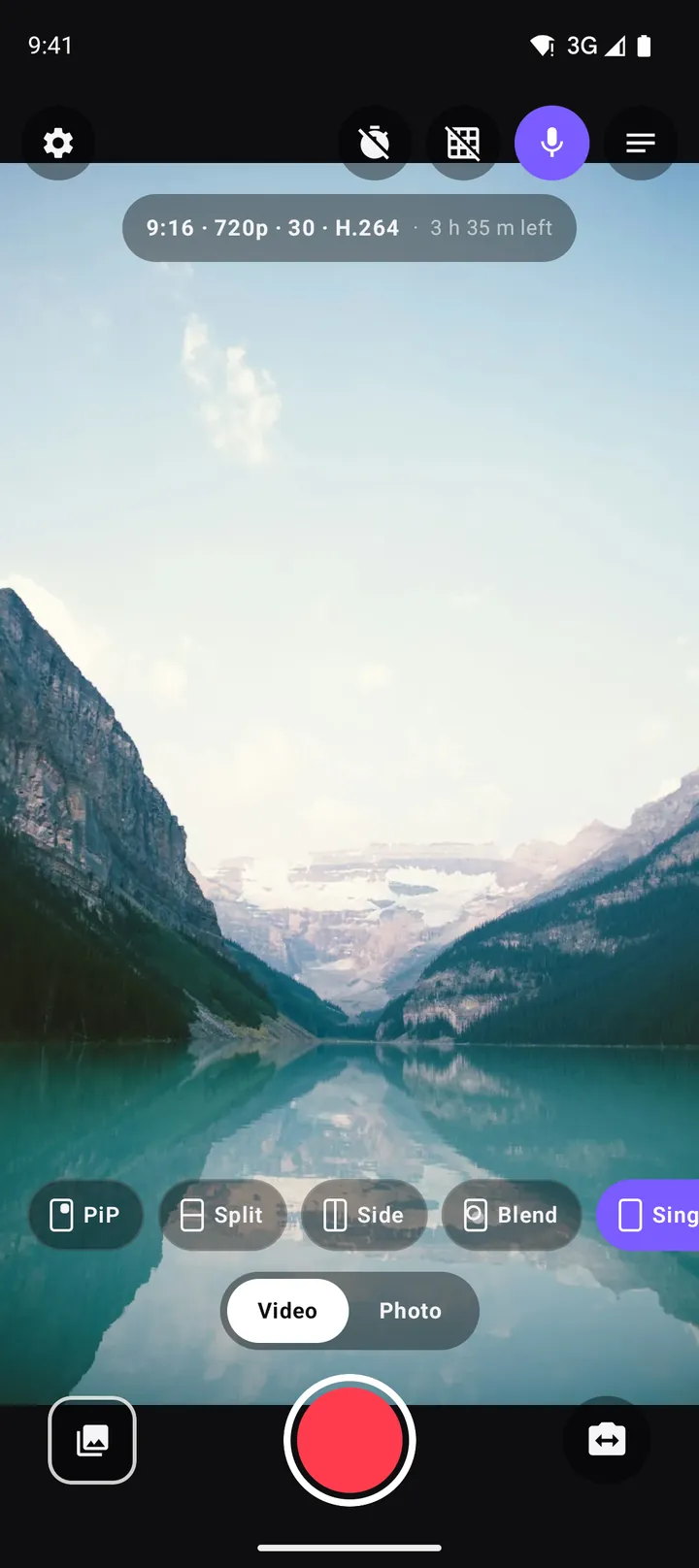
DuoCam checks this when it starts. If your phone cannot run both cameras together, it says so and switches to single-camera mode: you still record, swap between front and back, take photos, use the teleprompter and every format. On these phones you can also pick a photo or a clip from your gallery as the inset: it plays in the second window, muted and looped, while the camera records. The phone compatibility guide explains how to check your phone and what else you can try.
Tips for better dual camera videos
- Light your face. The front camera has a smaller sensor. Face a window or a lamp, and keep the bright sky behind the back camera instead of behind you.
- Hold the phone steady with two hands, elbows in. Both cameras move together, so a shake shows twice.
- Keep the small window out of the action. Drag the PiP window to a corner where nothing important happens in the main view.
- Plan with the teleprompter. If you talk to the camera, write a few lines in the teleprompter. It scrolls over the viewfinder and is never recorded.
- Record short takes. Several 30-second clips are easier to share and kinder to the battery and the phone's temperature than one 20-minute recording.
Free or Pro?
The free version is a complete dual camera recorder: PiP and Split, dual photos, the teleprompter with one script, 720p video, no watermark and no time limit. It shows a banner in the gallery and settings screens and occasionally a full-screen ad, never while recording. DuoCam Pro removes ads and adds the side-by-side, circle and Blend layouts, coloured borders, more aspect ratios and qualities, HEVC, high bitrate, time-lapse and unlimited scripts. It comes as a monthly or yearly subscription or a one-time lifetime purchase, with prices shown by Google Play for your country.
Frequently asked questions
Can Android record from the front and back camera at the same time?
Yes, if the phone's camera hardware supports concurrent cameras. Many recent Android phones do. DuoCam checks automatically and records both cameras into one video when the phone allows it, and falls back to one camera at a time when it does not.
Does DuoCam add a watermark to my videos?
No. There is no watermark in the free version or in DuoCam Pro, and there is no recording time limit.
Where are my dual camera videos saved?
Videos are saved to Movies/DuoCam and photos to Pictures/DuoCam on your phone. Your gallery app shows them, and the in-app gallery lists everything DuoCam made.
Can I change the layout while recording?
Yes. You can switch layouts and swap cameras during a take. Since version 1.1 those changes crossfade smoothly in the saved video.
Do I need an account or internet connection?
No. DuoCam works without an account, and your videos never leave your phone unless you share them yourself.
Why does DuoCam only show one camera on my phone?
Your phone's camera system cannot stream from both cameras at the same time. That is decided by the manufacturer and cannot be changed by an app. DuoCam switches to single-camera mode so you can keep recording, and lets you use a photo or clip as the inset instead.
Try it on your phone. DuoCam is free on Google Play, with no watermark and no account. Your videos stay on your phone.
Get DuoCam on Google PlayKeep reading
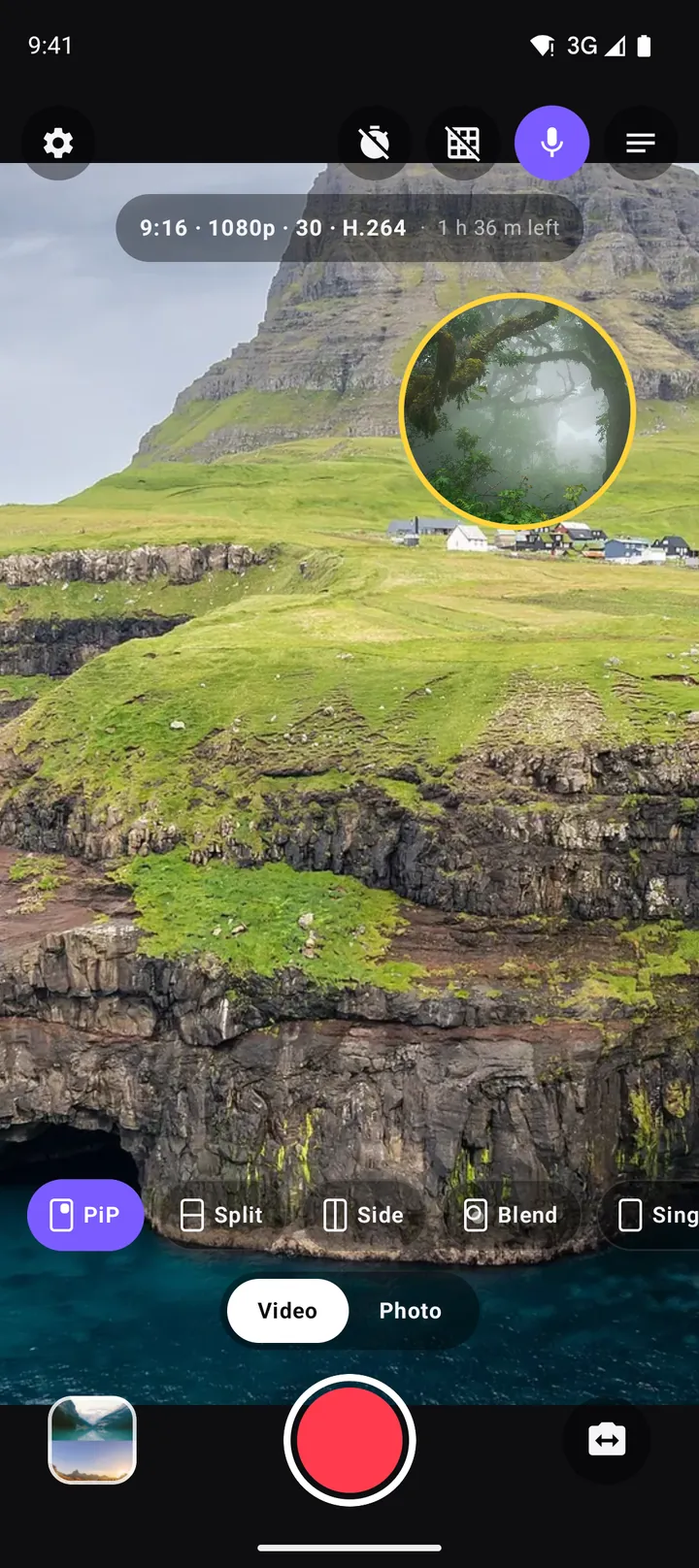
Picture-in-picture video on Android: how to record a PiP vlog in one take
How to record picture-in-picture video on Android with both cameras at once: moving and resizing the window, rounded, square and circle shapes, borders, swap, mirror and framing tips.
Split screen video on Android: top-and-bottom and side-by-side with two cameras
Record split screen video on Android with the front and back camera at once. When to use top-and-bottom or side-by-side, how to frame each half, the best aspect ratio, and ideas for split screen content.
Which Android phones can record with both cameras at once? How to check, and what to do if yours cannot
Why some Android phones can record the front and back camera together and others cannot, how to check yours in seconds, what single-camera mode offers, and fixes for common dual camera recording problems.