 DuoCam
Split screen gives each camera half of the frame, so both views carry the same weight. DuoCam records it live from the front and back cameras together: Split stacks them top and bottom (free), and Side puts them left and right (Pro). This guide explains when split screen beats picture-in-picture, how to frame each half so faces and scenes are not cut awkwardly, and which aspect ratio suits each platform.
What is a split screen video?
A split screen video divides the frame into two parts that play at the same time. Film-makers have used it for phone calls, parallel stories and before-and-after scenes for decades. On social media it became the standard format for reactions, duets and comparisons: one half shows the original, the other half shows the person reacting to it.
On a phone the two halves usually come from two different recordings, joined later in an editor. That means syncing the clips, cropping each one and exporting again, which costs time and quality. With a dual camera app the split is done while you record: the back camera fills one half, the front camera the other, and the result is one MP4 with perfectly synced picture and sound.
Split: top and bottom (free)
The Split layout stacks the two cameras vertically. On a 9:16 vertical video, each half is roughly a square, which is a very natural frame for a face and works well for most scenes. It is the layout to use for vertical platforms: TikTok, Instagram Reels and YouTube Shorts.
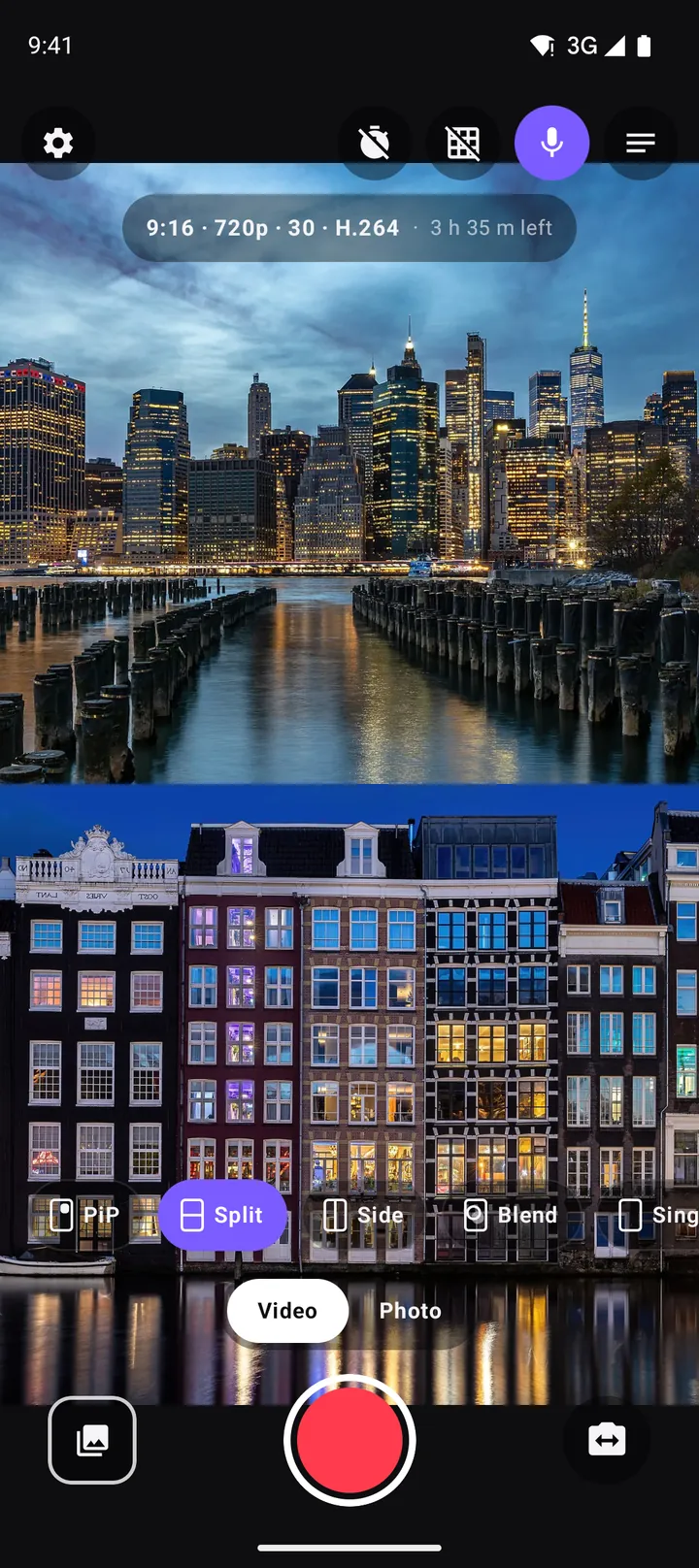
To record it:
- Open DuoCam and choose Split from the layout chips.
- Tap swap if you want the other camera on top. Most people put the scene on top and the face below, because the eye reads from top to bottom: first what happens, then the reaction.
- Frame both halves (see below), then press record.
Side: left and right (Pro)
The Side layout puts the two cameras next to each other. It shines in landscape formats such as 16:9, where each half becomes a tall, comfortable frame for a person. It is the look of a TV interview with two guests, a streamer next to the game, or a comparison where left is "before" and right is "after".
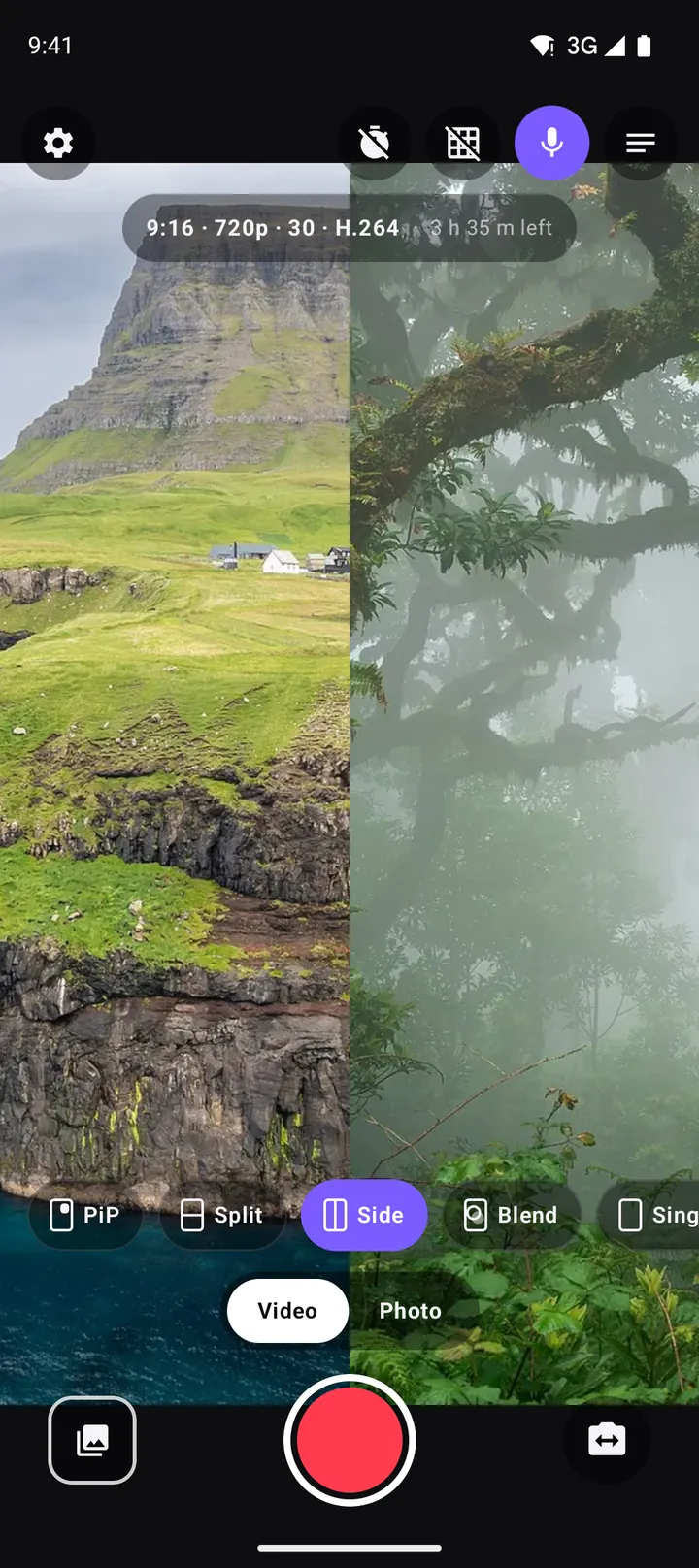
On a 9:16 vertical video each side becomes a narrow strip, which can still work for tall subjects such as a person standing, a waterfall or a tower. For seated faces and wide scenes, combine Side with a 16:9 or 1:1 format (Pro). The format guide covers aspect ratios in detail.
Split screen or picture-in-picture?
Both layouts show the two cameras together, but they tell the story differently.
| Situation | Better layout | Why |
|---|---|---|
| Reaction video | Split | The reaction is as important as the content, so it deserves equal space. |
| Travel vlog | PiP | The place is the star; your face only needs a corner. |
| Interview with two people | Split or Side | Both faces at the same size feel fair and readable. |
| Cooking or crafts | PiP or Split | PiP keeps the hands big; Split works when you talk a lot. |
| Before and after | Side | Left-to-right reads naturally as a comparison. |
| Live event or concert | PiP | The stage needs the full frame. |
You do not have to choose once for the whole video. Switch layouts during a take and DuoCam crossfades from one to the other in the saved file. A common pattern is to open in Split for the introduction, switch to PiP for the main content, and come back to Split for your final reaction.
Framing each half
In split screen each camera gets less of the frame than usual, and DuoCam fills each half by cropping the centre of that camera's picture. A few habits keep the crop clean:
Centre your face in the front camera
The selfie half shows the middle of the front camera's view. Hold the phone straight in front of you with your face in the middle; if you hold it low or high, your chin or the top of your head gets cut off at the split line.
Give the scene a clear subject
The back half is smaller than a full-frame shot, so busy scenes become hard to read. Point it at one clear subject: a dish, a building, a person, a screen. Step closer instead of zooming if you can, which keeps the picture sharp.
Watch the split line
Avoid placing anything important right at the edge where the halves meet, such as eyes in a top-and-bottom split or a product on the inner edge of a side-by-side split. Turn on the grid in Settings to see thirds and keep subjects away from the centre line.
Balance the brightness
The two halves sit right next to each other, so a difference in brightness is very visible. Tap the darker half to focus and expose on it, then drag the sun slider to match the other half. Long-press to lock focus and exposure when people move through the frame. The exposure guide shows both controls.
Split screen video ideas
- Reactions: a film trailer, a match, a magic trick or a friend's surprise. See the reaction video guide.
- Tasting and first impressions: the food on top, your face below as you take the first bite.
- Two-person talks: hold the phone between you and a friend, one on each camera, for a podcast-style clip.
- Tutorials: your hands on the guitar, keyboard or sketchbook in one half, your explanation in the other.
- Gaming on a TV: the screen on the back camera, your face on the front camera.
- Sports coaching: the athlete on the back camera, the coach's commentary on the front.
- Parents and kids: the child opening a present, and you, recorded together.
Sound in split screen videos
DuoCam records one audio track from the phone's microphone, in sync with both cameras. The phone is between you and the scene, so it picks up both your voice and the surroundings. For a clearer voice, speak towards the bottom of the phone where the main microphone usually sits, and keep the phone at a steady distance. If you plan to add music later, you can turn the microphone off on the record screen to record silent clips.
Sharing your split screen video
When you stop recording the video is saved to Movies/DuoCam. Open it in the in-app gallery to play or share it. Because it is an ordinary MP4, you can upload it directly to TikTok, Reels or Shorts, send it in a chat, or import it into an editor to trim the start and end. There is no watermark to crop away.
Troubleshooting
Only one camera appears
Your phone may not support running both cameras at the same time. DuoCam tells you when that happens and records one camera. You can then pick a photo or clip from your gallery as the second half. See which phones support dual recording.
The Side layout opens the Pro screen
Side by side is part of DuoCam Pro, together with the circle and Blend layouts, more formats and no ads. Split top-and-bottom is free.
The video looks soft
Each half uses part of the camera picture, so resolution matters more than in a single-camera video. If you have Pro, record at 1080p and consider the high bitrate option for detailed scenes.
A five-minute split screen workflow
If you are new to split screen, this short routine gets a usable clip on the first try:
- Pick the story. Decide what goes in each half before you open the app: "the street market on top, me tasting below" is enough of a plan.
- Find the light. Turn until both the scene and your face are lit. A window to your side indoors, the sun to your side outdoors.
- Frame the top half, then the bottom half. Tap each to set focus and exposure, and match their brightness with the sun slider.
- Do a 5-second test take. Play it back in the gallery, check that faces are not cut at the split line and the sound is clear.
- Record the real take. Keep it under a minute for social apps. If you fluff a line, stop and record again: the old take is just one tap to delete in the gallery.
After two or three clips the routine becomes automatic, and you will start to see split screen opportunities everywhere: a friend's face and the view they are pointing at, a pet and its owner, a cook and the pan.
Common split screen mistakes
- Two busy halves. If both cameras show crowded scenes, viewers do not know where to look. Keep one half simple, usually the face.
- Talking to the screen. Look at the front camera lens when you speak, not at your own half of the viewfinder.
- Tilted phone. A tilt shows in both halves at once. Turn on the grid and keep the horizon level.
- Too long. Split screen asks viewers to watch two things. Short, focused clips hold attention better than long ones.
Frequently asked questions
How do I record a split screen video with the front and back camera on Android?
Open DuoCam, choose the Split layout and press record. The two cameras are recorded at the same time into one MP4, one camera on top and the other below.
Is split screen recording free?
Yes. The top-and-bottom Split layout is free. The left-and-right Side layout is part of DuoCam Pro.
Can I switch between split screen and picture-in-picture while recording?
Yes. Change the layout during a take and DuoCam crossfades smoothly from one to the other in the saved video.
Which camera goes on top in split screen?
You decide with the swap button. Putting the scene on top and the face below reads naturally, because viewers see what happens first and the reaction second.
What aspect ratio is best for side-by-side video?
16:9 landscape gives each half a comfortable, tall frame. In 9:16 vertical video, the top-and-bottom Split layout usually looks better.
Does split screen record sound from both sides?
DuoCam records one audio track from the phone's microphone, which picks up both your voice and the scene, in sync with both cameras.
Try it on your phone. DuoCam is free on Google Play, with no watermark and no account. Your videos stay on your phone.
Get DuoCam on Google PlayKeep reading
How to make reaction videos on Android with one phone
Record reaction videos on Android with the front and back camera at the same time: setup, layouts, sound, lighting, copyright basics and ideas, with no editing needed.
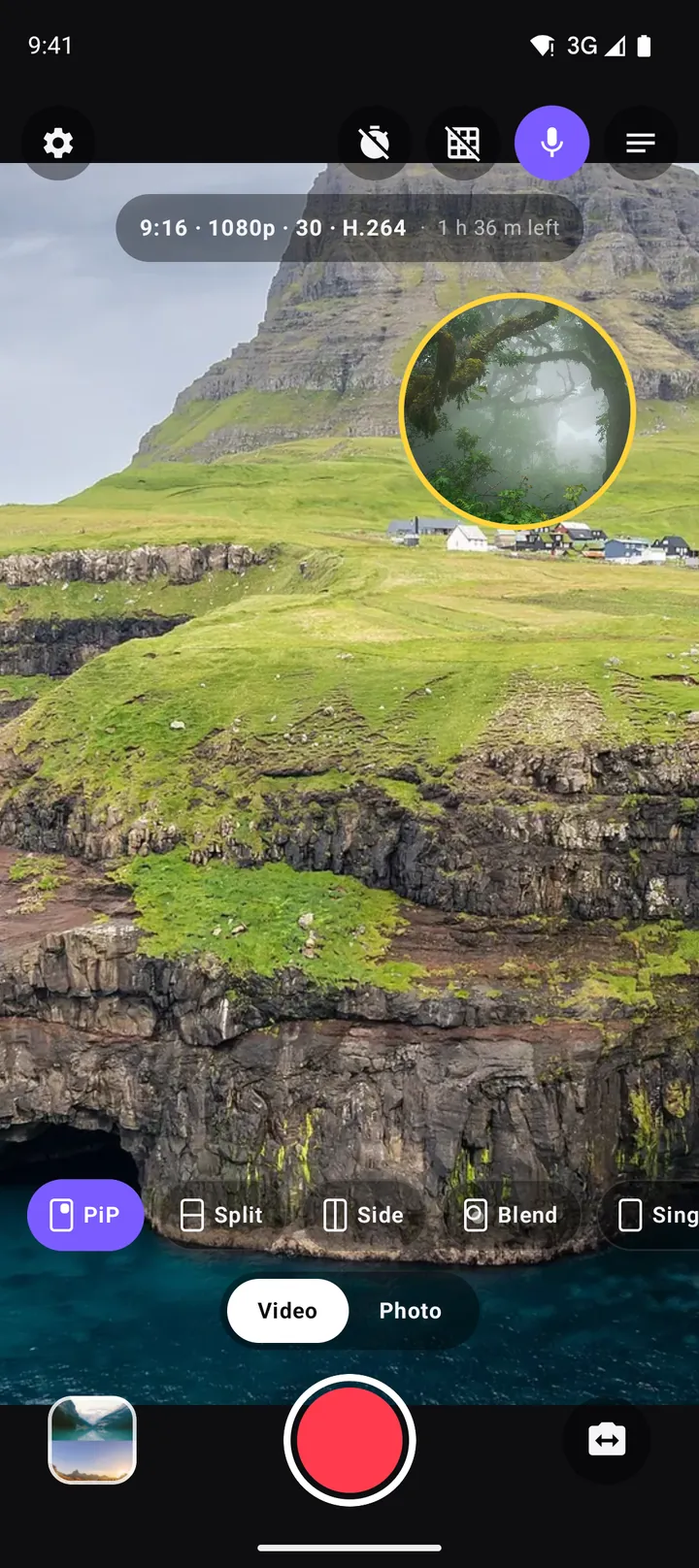
Picture-in-picture video on Android: how to record a PiP vlog in one take
How to record picture-in-picture video on Android with both cameras at once: moving and resizing the window, rounded, square and circle shapes, borders, swap, mirror and framing tips.
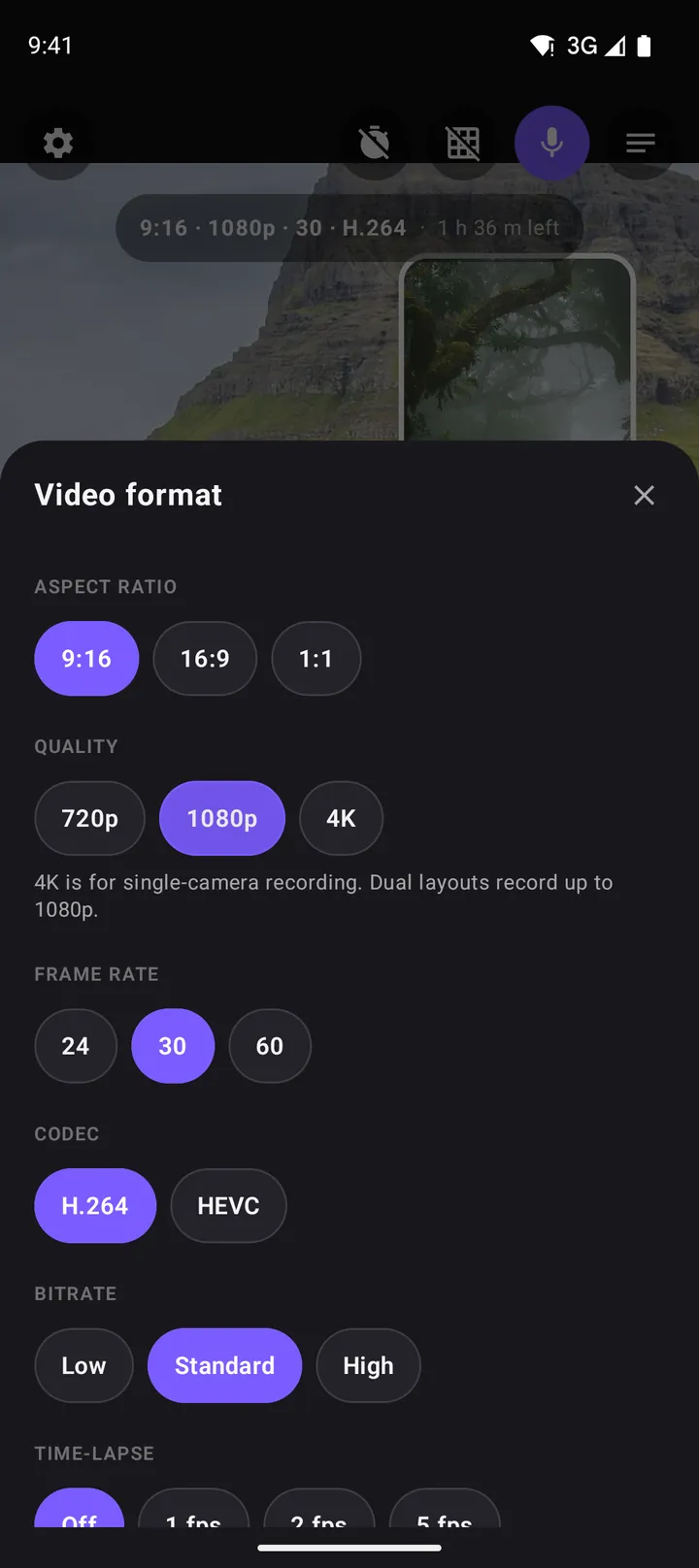
The best video settings for dual camera recording: resolution, frame rate, codec and more
Which aspect ratio, resolution, frame rate, codec and bitrate to choose for dual camera video on Android, plus time-lapse, file sizes, storage and the DuoCam settings that matter.