 DuoCam
A reaction video needs two things in sync: what you are watching and your face while you watch it. With DuoCam one phone records both at once, the back camera on the content and the front camera on you, into one finished MP4. This guide covers the setup, the best layout for each kind of reaction, how to get clean sound and light, and a few rules that keep your videos fair to the creators you react to.
Why reaction videos work
People love watching other people experience something for the first time. A reaction turns a trailer, a song, a dish or a surprise into a shared moment: the viewer sees the thing and, at the same time, sees how a real person feels about it. That is why reactions are one of the most watched formats on YouTube, TikTok and Instagram, from big channels reviewing film trailers to families recording a grandparent tasting a new snack.
The hard part has always been the recording. The classic setup uses a screen recorder for the content, a webcam or second phone for the face, and an editor to put them together and sync them. Even a small delay between the two clips makes the reaction feel fake. Recording both with the same phone, at the same time, solves the sync problem completely.
The one-phone setup
Here is the simplest reliable setup for a reaction video with DuoCam:
- Put the content on a separate screen: a TV, a laptop, a tablet or another phone. The back camera films that screen.
- Place your phone between you and the screen, upright, on a small tripod, a stack of books or a phone stand. The back camera faces the screen and the front camera faces you.
- Open DuoCam and choose a layout: Split for equal space, PiP if the content should be big. Swap until each camera is where you want it.
- Tap the screen area in the viewfinder to focus on it, then lower the brightness with the sun slider so the screen does not blow out. Long-press to lock it.
- Start with the timer (3 or 10 seconds) or with a volume key if you enabled that in Settings, so you are settled before the recording begins.
- Press play on the content and react naturally. Press stop when you are done; the video is saved.
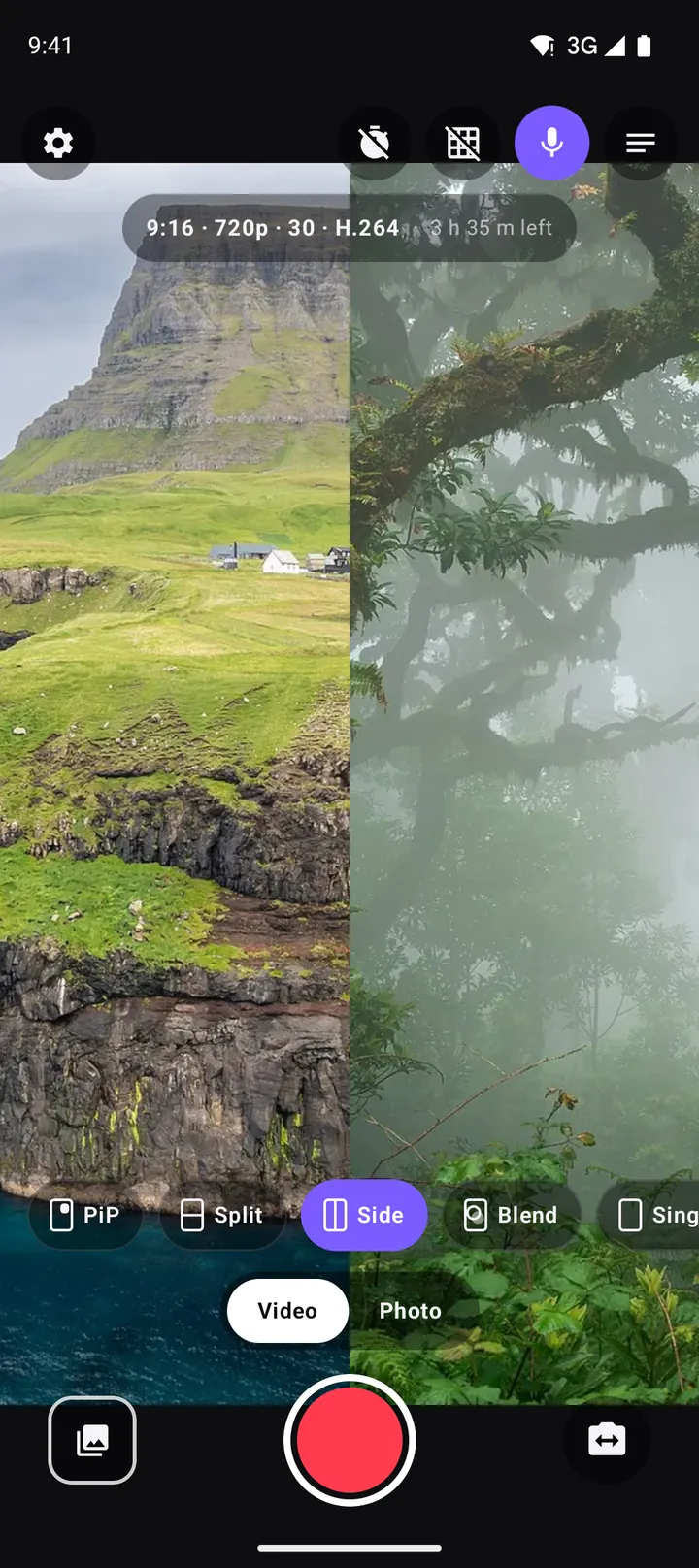
Which layout for which reaction?
Split (top and bottom)
The default choice for vertical reactions on TikTok, Reels and Shorts. Content on top, face below: viewers' eyes move naturally from what happens to how you respond. Both halves are about square, which suits a face perfectly.
Side by side (Pro)
The classic look for landscape reactions on YouTube. Use a 16:9 format so each side gets a comfortable frame. Side by side also works for "us vs. them" comparisons: your version of a dance next to the original, or the recipe photo next to your result.
Picture-in-picture
When the content needs detail, such as a game, a film scene or a sports replay, give it the full frame and put your face in a small window. A circle window with a border (Pro) is the look most streamers use. The PiP guide explains how to move, resize and style the window.
Remember that you can change layouts during the take. Starting in Split for the introduction and moving to PiP when the content gets busy is a simple way to make a reaction feel edited. Each change crossfades in the saved file.
Filming a screen without the ugly lines
Filming a TV or monitor with a camera can produce flicker, rolling bars or strange colour patterns (moiré). A few habits help:
- Lower the exposure with the sun slider. Screens are bright light sources; a slightly darker exposure keeps the picture readable and the colours rich.
- Move closer instead of zooming, and keep the phone square to the screen so the image is not skewed.
- Turn down the room lights behind the screen to avoid reflections, but keep a soft light on your face.
- Lock focus and exposure with a long-press so the camera does not hunt every time the scene on the screen changes.
If you only need the audio and a feeling of the content, you can also point the back camera at something else entirely, such as your friend's face, and keep the content off-camera.
Light your face
Your face is half the video. The front camera is usually smaller than the back camera and needs more light. Sit facing a window during the day, or put a lamp behind the phone, pointed at you. Avoid a bright window behind you: the front camera will expose for the window and your face will turn into a silhouette. If the content screen is the only light, your face will flicker blue with every scene change, so add a lamp.
Get clean sound
DuoCam records the phone's microphone in sync with both cameras. For reactions, that means it hears your voice and the content's audio from the speakers. Keep the content volume moderate, so your voice is clearly louder than it, and place the phone within arm's length of you. If you want to replace the content audio later in an editor, you can record with the microphone on and duck the background, or turn the microphone off on the record screen and narrate afterwards.
Fair use and respect for creators
Reacting to someone else's work means showing their content. Platforms and copyright law differ by country, so this is not legal advice, but a few common-sense rules keep you on safe ground and respectful:
- Add something. Your commentary, opinions and facial reactions should be the main point, not a full re-upload of the original.
- Show short excerpts rather than the whole work, and pause to talk.
- Credit the creator in your caption and link to the original.
- Prefer content you have permission to use: your own videos, friends' clips, public trailers released for promotion, or works with licences that allow reuse.
Many reactions need no copyrighted content at all: food, gifts, surprises, first-time experiences and real-life moments are often the most popular.
Reaction video ideas that need no screen
- First taste: a spicy dish, a fruit you have never tried, or a recipe from another country. Food on the back camera, face on the front.
- Unboxing: the box in the main frame, your excitement in the window.
- Surprises: hand the phone to someone else so the back camera films your friend while the front camera records the person filming.
- Theme park rides and fast cars: the view ahead and your face, recorded together (only where phones are allowed and safely mounted).
- Pets meeting something new: a snowman, a mirror, a vacuum cleaner.
- Learning a skill: your first try at a trick shot, with your reaction to how it turned out.
After recording
Your reaction is saved to Movies/DuoCam and listed in the in-app gallery. Play it back, share it directly, or open it in an editor to cut the beginning and add captions. Because both cameras are already in one file and in sync, any basic editor is enough. The free version records 9:16 at 720p without a watermark; Pro adds 1080p, 16:9 and 1:1 for landscape and square reactions. See the format guide for more.
A simple structure for reaction videos
Good reactions feel spontaneous, but the best ones follow a loose structure:
- Set-up (5–10 s). Tell viewers what you are about to watch or try and what you expect. "Everyone says this is the spiciest noodle in the city. Let's see."
- The moment. Watch, taste or open, and let the reaction happen. Do not talk over the best part.
- Pause and comment. Stop the content at the interesting points and say what you think. This is where your voice adds value.
- Verdict (5–10 s). A clear opinion or rating gives viewers a reason to comment and agree or disagree.
With DuoCam you can mark these parts with layout changes, for example Split for the set-up and verdict and PiP for the content itself. The crossfades make the structure visible without any editing.
Mistakes to avoid
- Fake reactions. Viewers notice exaggerated surprise quickly. Be honest, even if your reaction is quiet.
- A dark face. A bright TV behind the phone and a dark room make your face disappear. Add a lamp.
- Content too loud. If the speakers drown your voice, the reaction loses its point.
Frequently asked questions
Can I make a reaction video with just one phone?
Yes. DuoCam records the back camera (the content) and the front camera (your face) at the same time into one video, so you need one phone and, optionally, a second screen to watch the content on.
What is the best layout for a reaction video?
Split (top and bottom) for vertical videos on TikTok, Reels and Shorts; side by side in 16:9 for YouTube; picture-in-picture when the content needs detail and your face only needs a corner.
How do I stop the TV screen from looking washed out?
Tap the screen in the viewfinder, drag the sun slider down to darken it, and long-press to lock focus and exposure so the camera does not keep adjusting.
Will the reaction and the content be in sync?
Yes. Both cameras and the microphone are recorded together into one file, so there is nothing to line up afterwards.
Is it legal to react to other people's videos?
It depends on the platform and the country. Add real commentary, show short excerpts, credit the creator, and prefer content you have permission to use. This is general guidance, not legal advice.
Do I need to edit the video afterwards?
No. The MP4 is finished when you stop recording. You can still trim it or add captions in any editor if you want.
Try it on your phone. DuoCam is free on Google Play, with no watermark and no account. Your videos stay on your phone.
Get DuoCam on Google PlayKeep reading
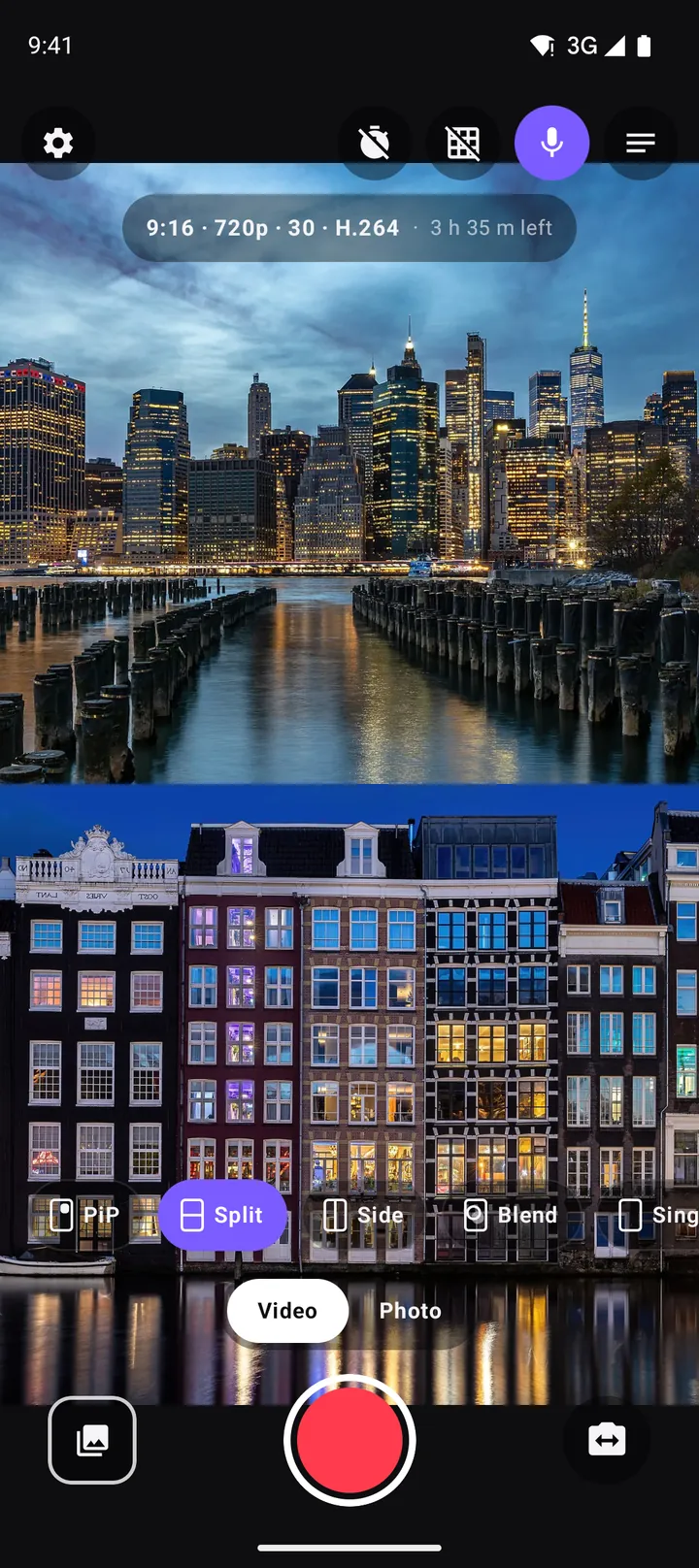
Split screen video on Android: top-and-bottom and side-by-side with two cameras
Record split screen video on Android with the front and back camera at once. When to use top-and-bottom or side-by-side, how to frame each half, the best aspect ratio, and ideas for split screen content.
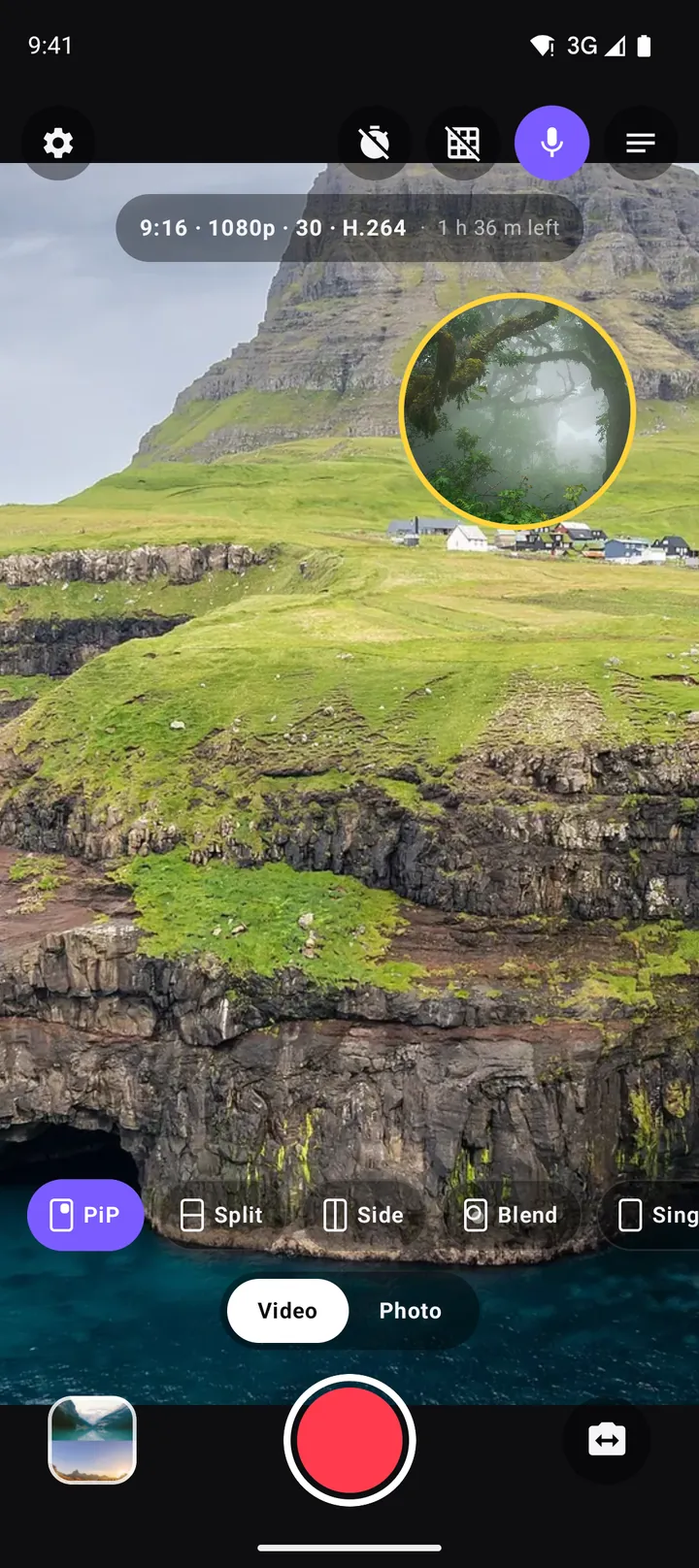
Picture-in-picture video on Android: how to record a PiP vlog in one take
How to record picture-in-picture video on Android with both cameras at once: moving and resizing the window, rounded, square and circle shapes, borders, swap, mirror and framing tips.
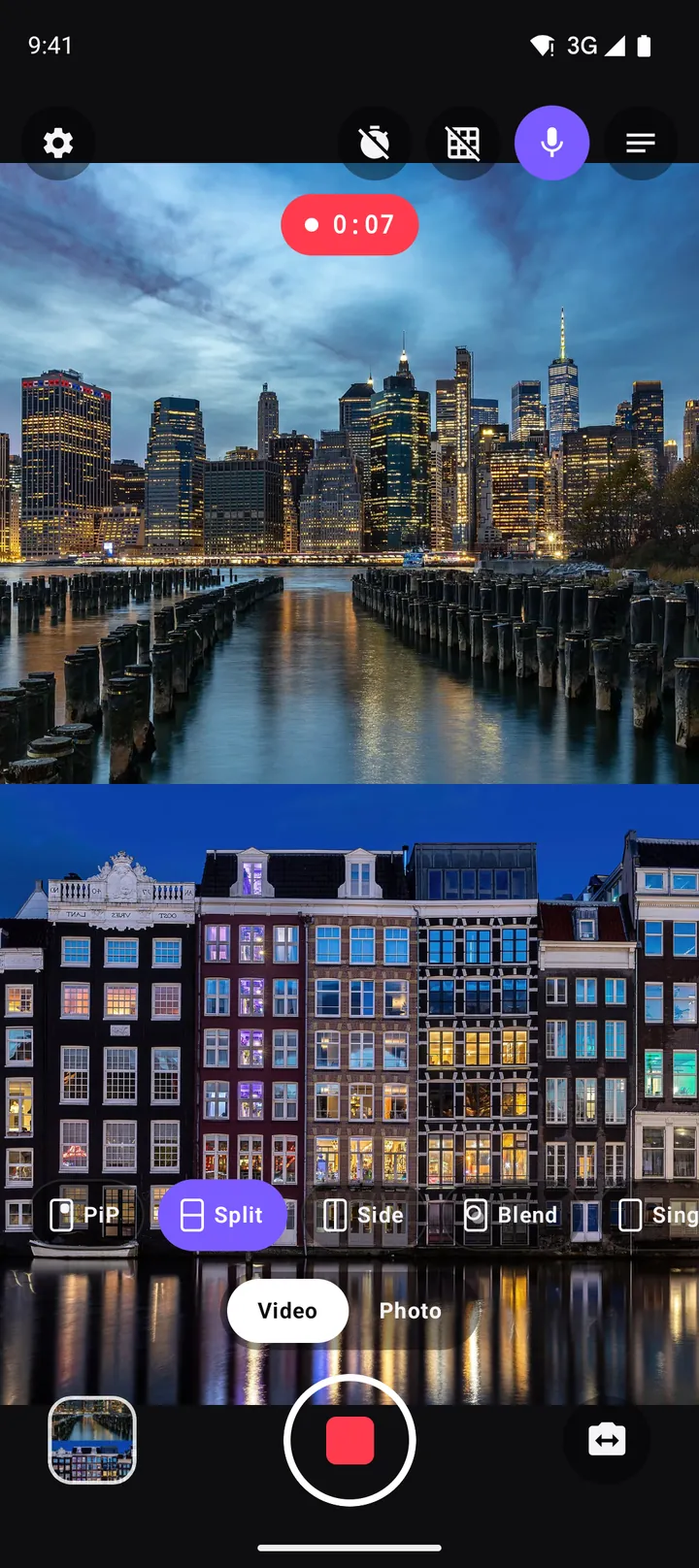
How to vlog with one phone: the dual camera method
A practical guide to vlogging with just one Android phone: record yourself and the scene at once, plan shots, light and sound, battery and heat, and share-ready formats.