 DuoCam
Picture-in-picture (PiP) puts one camera in the full frame and the other in a small window on top. It is the most popular dual camera layout because it keeps the scene big while your face stays in the corner, the way news presenters and game streamers do it. With DuoCam you record PiP live, from both cameras at once, without editing. This guide covers the window controls, the PiP style options, and how to frame a PiP video that looks good on Shorts, Reels and TikTok.
What is picture-in-picture video?
Picture-in-picture is a layout where a smaller video plays inside a larger one. On television it is how a sign-language interpreter or a remote guest appears next to the main programme. On YouTube and Twitch it is the facecam in the corner of a gameplay video. On a phone, it means the back camera films the scene while the front camera records you in a small window, or the other way round.
Traditionally you made a PiP video in an editor: record two clips, import them into a timeline, shrink one, place it in a corner, line up the audio, and export. A dual camera app skips all of that. DuoCam reads both cameras at the same time and draws the PiP window into the video as it records, so the file in your gallery is already finished.
How to record PiP with DuoCam
- Open DuoCam and allow the camera (and the microphone when you first record).
- Choose PiP from the layout chips at the bottom of the viewfinder. It is the default layout and it is free.
- Decide which camera is big. Tap swap to put the scene in the full frame and your face in the window, or your face in the full frame and the scene in the window.
- Drag the small window to the corner where it hides the least, and pinch it to the size you want.
- Press record. Press it again to stop; the video is saved to
Movies/DuoCam.
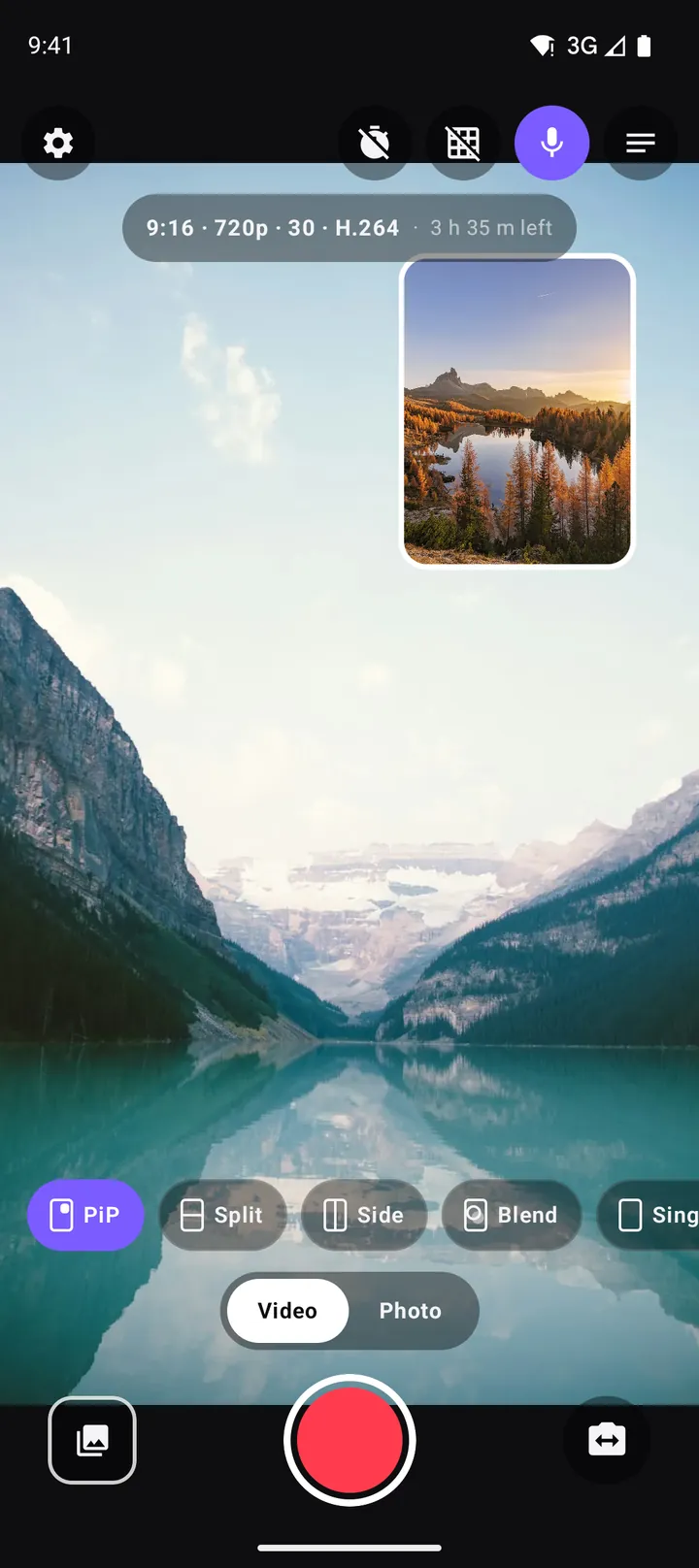
If your phone cannot run both cameras together, DuoCam tells you and records one camera at a time instead. You can still make a PiP video by choosing a photo or clip from your gallery as the inset: it plays in the small window, muted and looped, while the camera records. The compatibility guide explains why some phones are limited.
Moving and resizing the window
The PiP window is built to be moved with one thumb while you hold the phone:
- Drag the window anywhere in the frame.
- Pinch it with two fingers to make it bigger or smaller.
- Let go and it snaps to the nearest corner, with a tidy margin from the edges, so it never ends up half off the frame or at an odd angle.
You can move the window during a take too. The movement is recorded exactly as you see it, which you can use on purpose: slide your face out of the way when something interesting enters that corner, or make the window bigger for a moment when your reaction is the point.
PiP style: shape, border and mirror
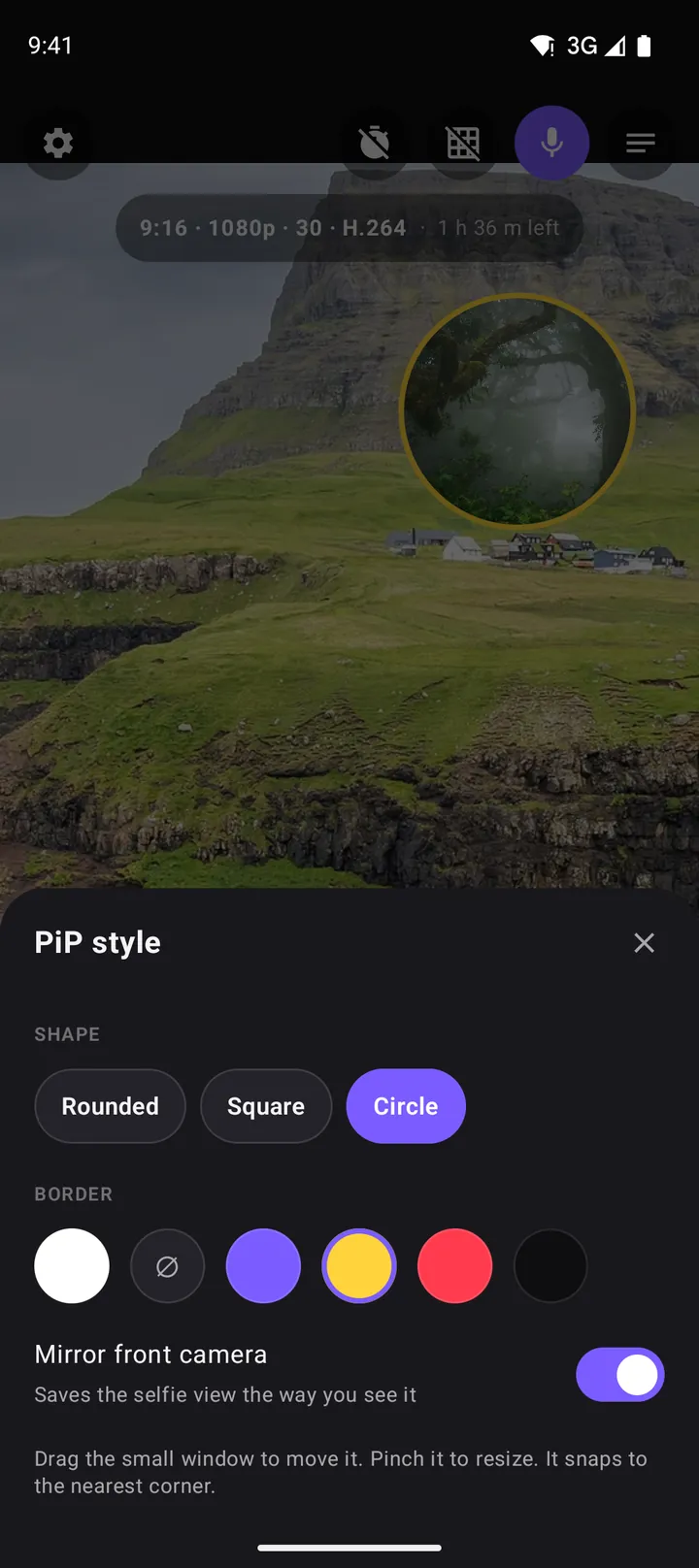
With PiP selected, tap the PiP chip again to open the PiP style sheet. It controls how the window looks in the preview and in the video.
Shape
- Rounded (free): soft corners, the familiar phone-camera look.
- Square (free): sharp corners, a clean broadcast look that matches split-screen edits.
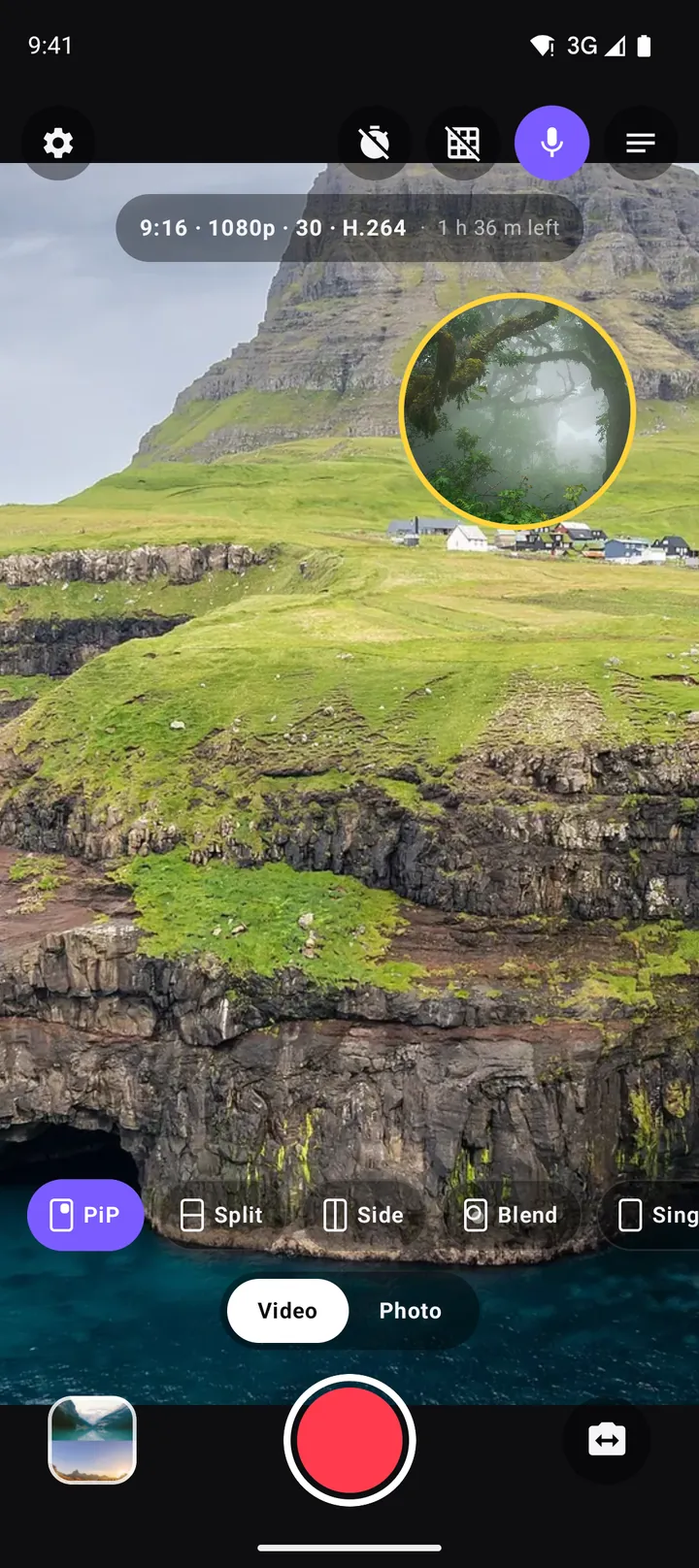
- Circle (Pro): a round window, the "bubble" facecam many creators use. It frames a face naturally and leaves more of the background visible.
Border
A coloured border (Pro) separates the window from the scene behind it. It helps a lot when the two cameras show similar colours, for example a face in front of a skin-toned wall, or green trees behind green trees. Pick a colour that matches your channel or simply contrasts with the background: yellow and white read well on almost anything.
Mirror front camera
With mirror on, the selfie view is saved the way you see it in the viewfinder. Most people prefer it, because the mirrored face is the one we know from the mirror. Turn it off if you hold up text, a sign or a product label, which would otherwise read backwards.
Swapping cameras in PiP
The swap button exchanges the two cameras: the small one becomes big and the big one becomes small. In DuoCam 1.1 and later, a swap crossfades over a fraction of a second, both on screen and in the saved file. Used during a take, it works like a cut between a wide shot and a close-up. A simple pattern for vlogs:
- Open on your face big, the scene small: "We just made it to the top."
- Swap: the view fills the frame, your face moves into the window while you describe it.
- Swap back for the closing line.
Three swaps in a 40-second clip feel edited, but you did them live with one thumb.
Framing a good PiP shot
Keep the main subject away from the window
Before you press record, look at where the window sits and make sure nothing important happens behind it. If you film a person walking left to right, park the window in a top corner instead of the bottom one where their feet will be.
Mind the light on both sides
The two cameras face opposite directions, so the light is different for each. If the sun is behind you, the back camera sees a bright scene while your face is in shadow, and the reverse is also true. Turn so that the light falls across both, or tap your face in the window to set focus and exposure for it, then use the sun slider. The exposure guide explains how.
Size the window for the screen it will be watched on
A window that looks big on your phone can look small when someone watches on a phone held at arm's length. For a face, a window roughly a quarter of the frame width is a good starting point. For a reaction video where your face matters as much as the content, go bigger, or use split screen instead.
Hold the phone steady
In PiP both cameras move with the phone. Hold it with two hands and keep your elbows close to your body, or use a small tripod. If you record alone, start with the 3- or 10-second timer, or let the volume keys start and stop recording (an option in Settings).
PiP video ideas
- Walking tours: city streets or a hiking trail in the main frame, your commentary in the corner.
- Cooking: the pan in the main frame, your face explaining the step.
- Unboxing and product reviews: the product big, your first impression small.
- Sports and concerts: the action big, your reaction small, recorded in sync.
- Pet videos: the dog big, your laughter small.
- Teaching: a whiteboard or notebook big, the teacher small, with the script in the teleprompter.
Best format for PiP videos
For Shorts, Reels and TikTok, keep the default 9:16 vertical. The free version records it at 720p 30 fps H.264, which uploads quickly and plays everywhere. With Pro you can choose 1080p for sharper results, 16:9 for YouTube and landscape screens, or 1:1 for feeds that crop to a square. High bitrate keeps detail in busy scenes like leaves and water, and HEVC makes files smaller. The full list of options is in the settings guide.
PiP or split screen?
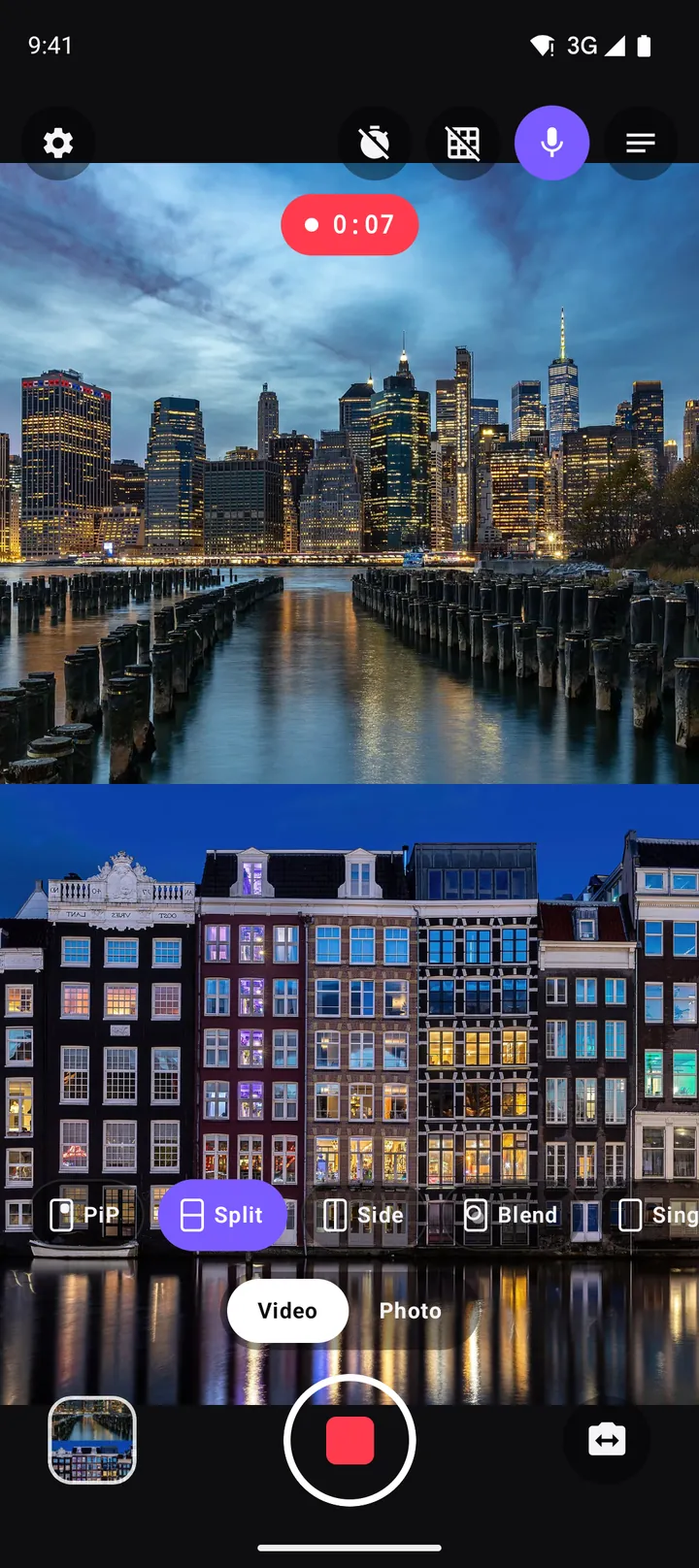
Use PiP when one view matters more: the scene is the story and you are the narrator. Use Split when both views matter equally, such as a conversation or a reaction where faces and content deserve the same space. You can switch between them during a take, and the change crossfades in the video.
Frequently asked questions
How do I make a picture-in-picture video on Android without editing?
Use a dual camera app such as DuoCam. Choose the PiP layout and press record: both cameras are recorded at once and the small window is drawn into the video, so the MP4 is finished when you stop.
Can I move the PiP window while recording?
Yes. Drag it to move it and pinch it to resize it. When you let go it snaps to the nearest corner, and every movement is recorded the way you see it.
Is the circle PiP window free?
Rounded and square windows are free. The circle shape and coloured borders are part of DuoCam Pro.
Why is my face reversed in the video?
Mirror front camera is on, so the selfie view is saved like a mirror image. Turn it off in the PiP style sheet (tap the PiP chip again) or in Settings if you need text to read the right way round.
Which corner is best for the PiP window on TikTok or Reels?
The top left is usually safest. The bottom of the frame is covered by captions and buttons, and the right edge by like and share icons.
Can I record PiP on a phone that does not support two cameras?
You can record one camera with a photo or clip from your gallery as the inset. It plays muted and looped in the small window while the camera records.
Try it on your phone. DuoCam is free on Google Play, with no watermark and no account. Your videos stay on your phone.
Get DuoCam on Google PlayKeep reading
How to record with the front and back camera at the same time on Android
A step-by-step guide to recording both cameras at once on Android with DuoCam: picture-in-picture, split screen, dual photos, formats, the teleprompter and what to do if your phone runs one camera only.
How to vlog with one phone: the dual camera method
A practical guide to vlogging with just one Android phone: record yourself and the scene at once, plan shots, light and sound, battery and heat, and share-ready formats.
Split screen video on Android: top-and-bottom and side-by-side with two cameras
Record split screen video on Android with the front and back camera at once. When to use top-and-bottom or side-by-side, how to frame each half, the best aspect ratio, and ideas for split screen content.