 DuoCam
A teleprompter scrolls your script on the screen so you can speak smoothly while looking at the camera. DuoCam has one built in: write your script, pick a speed and text size, and the words scroll over the viewfinder while you record with one or both cameras. The script is never recorded into the video, and it is stored only on your phone. This guide shows how to use it and how to write scripts that sound natural.
Why use a teleprompter on your phone?
Talking to a camera is harder than talking to a person. Most of us forget a point, repeat ourselves, say "um" a lot, or look down at notes, which breaks eye contact with the viewer. Presenters on TV solve this with a teleprompter: a screen in front of the lens that shows the script, so they can read while looking straight at the audience.
On a phone, the screen sits right next to the front camera, which makes it an ideal teleprompter. You read a few lines below the lens and your eyes stay close to the camera. With a little practice the viewer cannot tell you are reading.
A teleprompter helps in many situations:
- Product demos and explainers where every step must be in the right order.
- Course lessons and tutorials with exact terms and numbers.
- Sales and pitch videos with a time limit.
- Vlog intros and outros you record again and again.
- Speaking in a second language, where a script gives confidence.
Step 1: write your script
Tap the teleprompter button on the record screen. The teleprompter sheet opens with your scripts. Tap New script, give it a title such as "Lake day vlog", and type or paste your text into the script field.
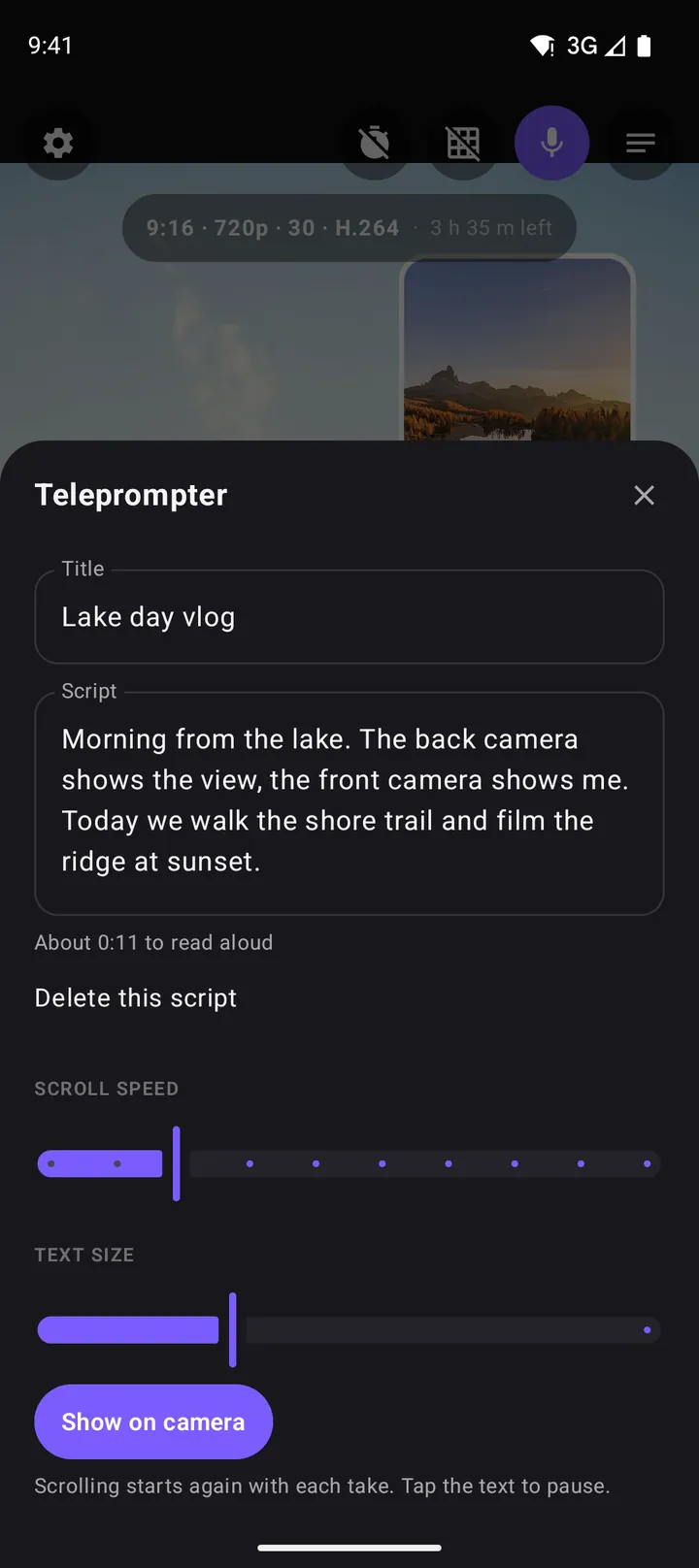
Under the script, DuoCam shows an estimate such as "About 0:45 to read aloud". It is based on a comfortable speaking pace and helps you fit a script to a platform's length: under a minute for Shorts and Reels, a few minutes for a YouTube explainer.
The free version keeps one script, which is enough if you record one video at a time and replace the text. DuoCam Pro keeps as many scripts as you like, so you can prepare a whole series in advance. Scripts are saved on your phone only; they are not uploaded anywhere.
Step 2: set the scroll speed and text size
Two sliders control how the script appears:
- Scroll speed: how fast the text moves up. Start slow. You can always speak a little faster than the text, but racing to keep up sounds stressed.
- Text size: bigger text is easier to read from arm's length or from a tripod, but fewer words fit on screen. For a phone held in your hand, a medium size works for most people.
Tap Show on camera to put the script on the viewfinder.
Step 3: record while you read
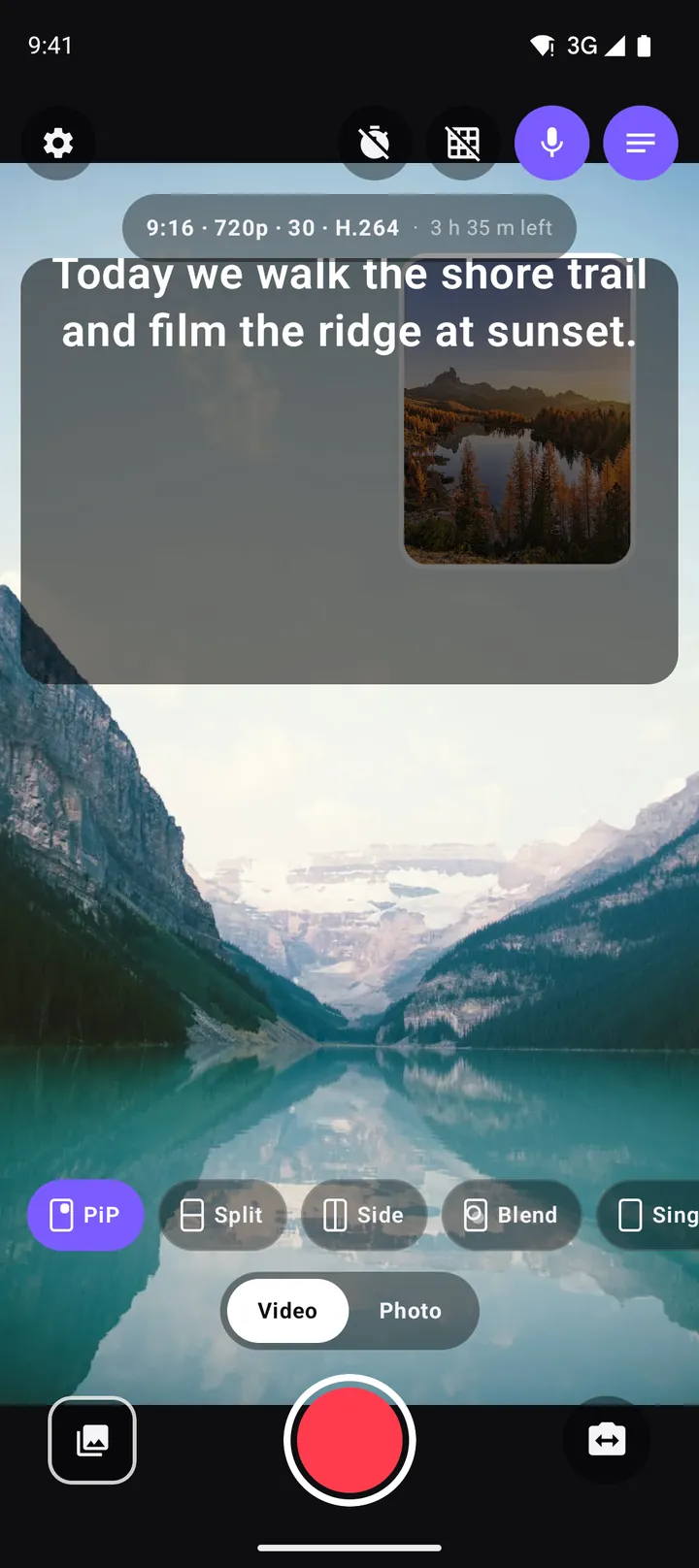
With the script showing, press record. The text scrolls from the start of the script with each new take, so every take begins at the top. While recording, tap the text to pause the scrolling, for example to make a gesture or wait for a laugh, and tap again to continue.
Between takes, the teleprompter sheet has two more controls:
- Restart brings the script back to the beginning.
- Hide removes the script from the viewfinder without deleting it.
The teleprompter text is drawn only on your screen. The saved video shows the cameras and nothing else, so you never have to crop out a script or worry that viewers see your notes.
Keep your eyes on the lens
The trick to natural teleprompter reading is to keep your eyes as close to the front camera as possible:
- Hold the phone a little further away. At arm's length, the angle between the text and the lens is small and your eye movement becomes invisible.
- Use a slower speed and larger text so you read the lines near the top of the screen, closest to the camera.
- Look at the lens for the first and last line of each paragraph. Those are the moments viewers notice most.
- Practise once without recording. A single read-through makes the second take much smoother.
The teleprompter with two cameras
The teleprompter works in every layout. That opens up formats a normal teleprompter app cannot do:
- Narrated tours: in PiP, the back camera shows the place while you read the facts from the screen, your face in the corner.
- Product explainers: in Split, the product sits on one half and you present it from the other, reading the key points.
- Recipes: the pan big, the steps scrolling for you as you cook.
- News-style updates: a scene behind you on the back camera, your face reading the update on the front camera.
If your phone records one camera at a time, the teleprompter works just the same with the camera you choose.
How to write a script that sounds natural
A good teleprompter script is written for the ear, not the eye. Some rules that help:
- Write short sentences. One idea per sentence. Long sentences are hard to read aloud and hard to follow.
- Use the words you would say. Contractions like "it's" and "you'll" sound friendlier than "it is" and "you will".
- Start with a hook. Tell viewers in the first line what they will get: "Here is how I record my whole hike with one phone."
- Mark pauses. A line break or an ellipsis reminds you to breathe.
- Leave room for yourself. Write bullet-like lines for the parts you know well and improvise around them; read word for word only where precision matters.
- End with one clear action: follow, comment, visit, try it.
Example script for a 30-second travel clip
"We made it to the lake. Look at that water... it's completely still this morning. We left at five to get here before the crowds. The trail took about an hour, mostly through the forest. Totally worth it. Next time I'll bring a coffee. If you're coming here, start early, and bring a jacket. It's cold until the sun comes up."
That script reads in about 30 seconds at a calm pace, which DuoCam's reading-time estimate will confirm.
Troubleshooting
The text is too fast or too slow
Open the teleprompter sheet and adjust the scroll speed. If your speaking pace varies, choose a slightly slow speed and tap the text to pause where you need more time.
I cannot create a second script
The free version keeps one script. Edit it for the next video, or upgrade to DuoCam Pro for unlimited scripts.
Will the script appear in my video?
No. The teleprompter is only on your screen. The saved video and photo contain the cameras only.
Script formats that work well on camera
The 3-part explainer
Problem, solution, result. "My videos always looked dark indoors. Here is the one change I made. Look at the difference." It fits in 30 to 60 seconds and works for almost any tip.
The list
"Three things I wish I had known before visiting this lake." Numbers give viewers a reason to stay until the end, and they make the script easy to read in short blocks.
The story
Start in the middle of the action, explain how you got there, end with what happened next. Write the opening line word for word and the rest as short prompts.
The intro and outro
Many creators keep a fixed greeting and sign-off. With Pro you can keep them as their own scripts and switch to them for every video, so the channel always sounds consistent.
Practise like a presenter
Professional presenters read through a script once out loud before recording, mark the words to stress, and keep a glass of water nearby. Try recording two takes: one reading closely and one where you glance at the text only for key points. Watch both in the gallery and keep the one that sounds more like you talking to a friend. Over time you will need the teleprompter less, and use it for structure rather than every word.
Your scripts stay private
Scripts often contain things you have not published yet: a product launch, a lesson plan, a personal story. DuoCam keeps them in the app's storage on your phone only. There is no account and no cloud sync, so nobody else can read them, and they never appear in the recording. If you change phones, copy the text you want to keep into a note first; uninstalling the app or clearing its storage deletes the scripts.
Frequently asked questions
Is the teleprompter text recorded in the video?
No. The script only scrolls on your screen. The saved video shows the cameras and nothing else.
Is DuoCam's teleprompter free?
Yes. The free version includes the teleprompter with one script. DuoCam Pro keeps unlimited scripts.
Can I change the scroll speed and text size?
Yes. The teleprompter sheet has sliders for scroll speed and text size, and you can tap the text to pause it while recording.
Where are my teleprompter scripts stored?
On your phone only. Scripts are not uploaded, and uninstalling the app or clearing its storage removes them.
How long will my script take to read?
DuoCam shows an estimate under the script, such as "About 0:45 to read aloud", based on a comfortable speaking pace.
Does the teleprompter work with both cameras?
Yes. It works in every layout, including PiP and Split, and on phones that record one camera at a time.
Can I pause the teleprompter while recording?
Yes. Tap the scrolling text to pause it, and tap again to continue. Each new take starts the script from the top.
Try it on your phone. DuoCam is free on Google Play, with no watermark and no account. Your videos stay on your phone.
Get DuoCam on Google PlayKeep reading
How to vlog with one phone: the dual camera method
A practical guide to vlogging with just one Android phone: record yourself and the scene at once, plan shots, light and sound, battery and heat, and share-ready formats.
How to record with the front and back camera at the same time on Android
A step-by-step guide to recording both cameras at once on Android with DuoCam: picture-in-picture, split screen, dual photos, formats, the teleprompter and what to do if your phone runs one camera only.
Picture-in-picture video on Android: how to record a PiP vlog in one take
How to record picture-in-picture video on Android with both cameras at once: moving and resizing the window, rounded, square and circle shapes, borders, swap, mirror and framing tips.