 DuoCam
A dual photo captures the scene and the photographer in the same instant, in one JPEG. DuoCam's Photo mode uses the same layouts as video (picture-in-picture, split, and with Pro side by side and Blend), so you can take a "view plus face" picture with one tap. This guide shows how to take dual photos, how to frame them, and where they are saved.
What is a dual photo?
A normal photo shows what is in front of the camera, and the person holding the phone is missing from it. That is why so many holiday albums have hundreds of views and no pictures of the person who took them. A selfie fixes that, but then the view is behind your head, small and out of focus.
A dual photo takes both pictures at the same moment, from the back and front cameras, and combines them into one image in the layout you chose. The view is sharp and properly framed, and so is your face. The idea became popular with social apps that post a front and back picture together; DuoCam does it in a normal camera app, with no account and no posting deadline, and saves an ordinary JPEG to your phone.
How to take a dual photo
- Open DuoCam and switch the Video / Photo toggle at the bottom to Photo.
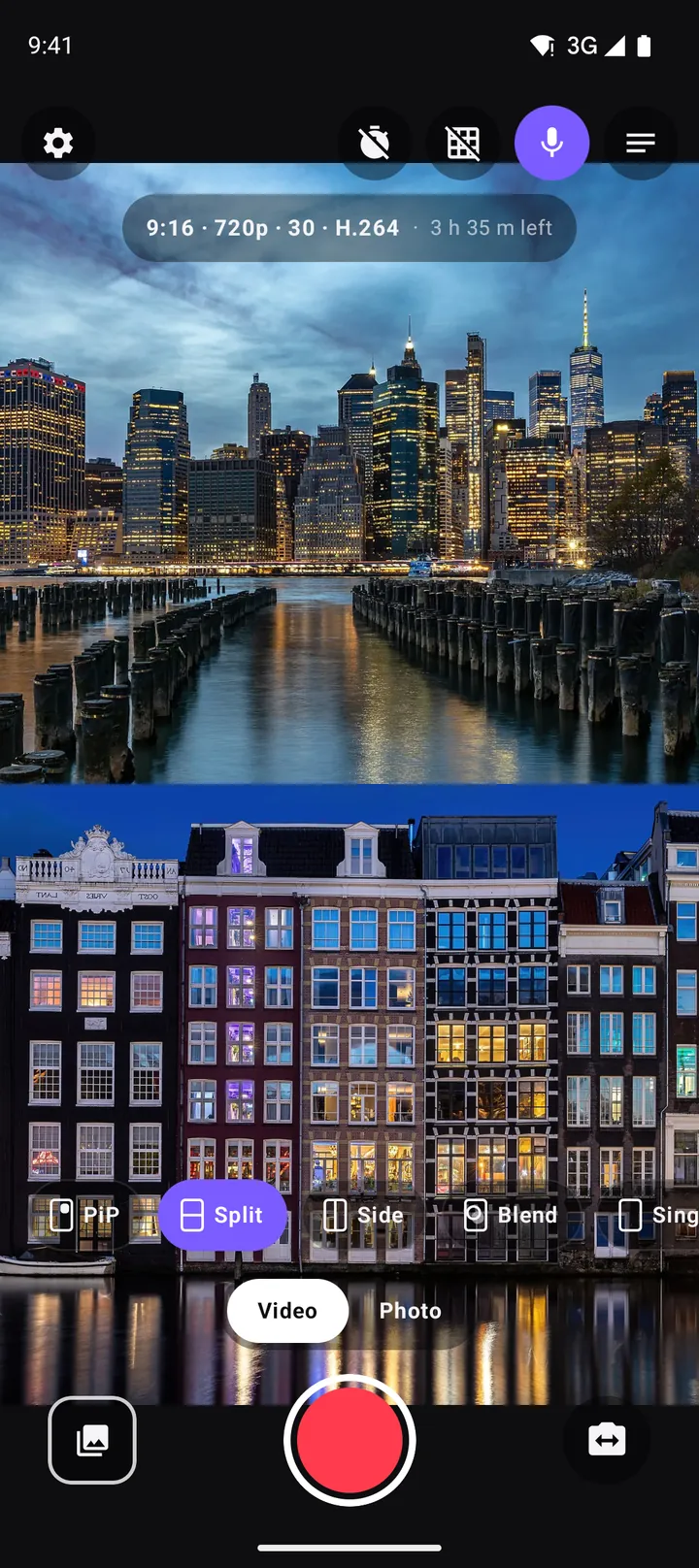
- Choose a layout: PiP or Split for free, Side or Blend with Pro.
- Tap swap to decide which camera is big or on top.
- Tap to focus on the subject and, if needed, drag the sun slider to adjust brightness.
- Press the shutter. Both cameras are captured into one JPEG and saved to
Pictures/DuoCam.
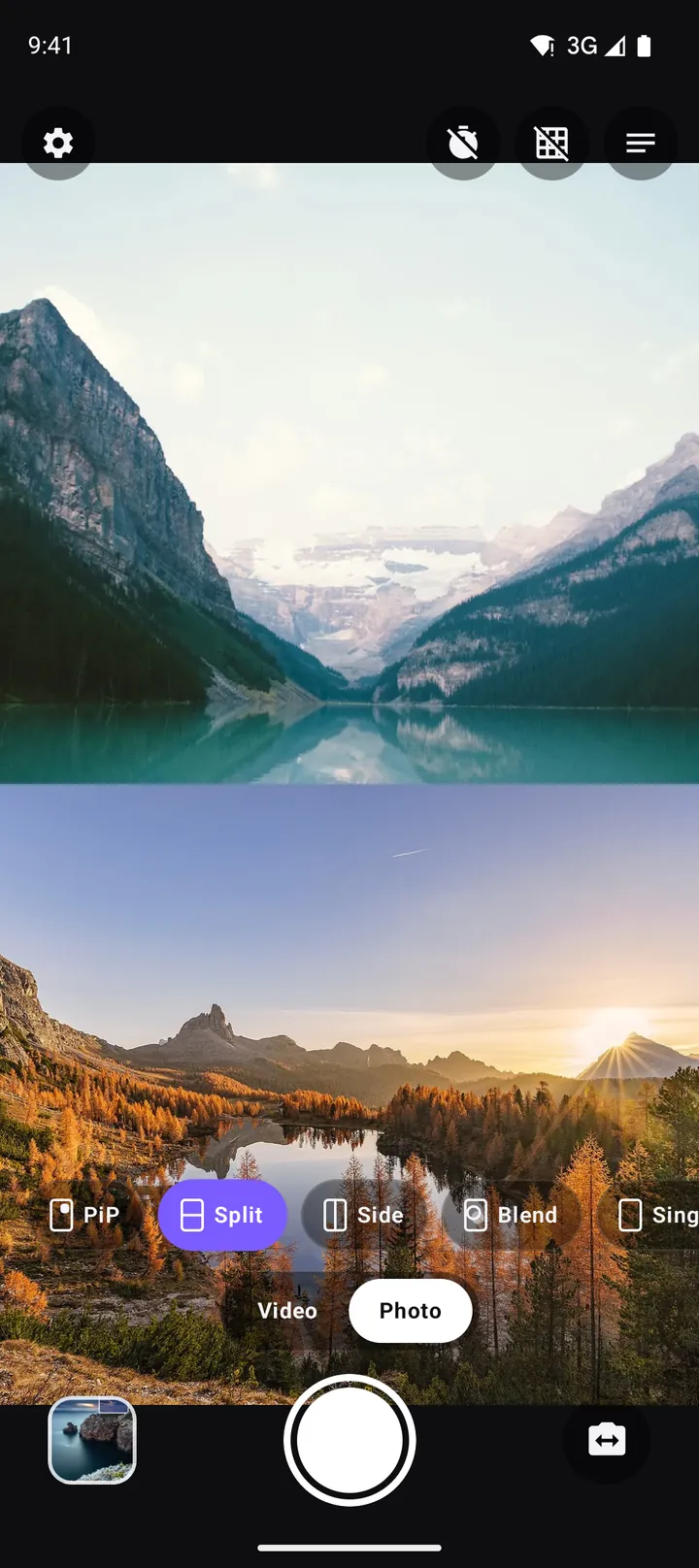
A short confirmation tells you the photo was saved. If you enabled the shutter sound and vibration in Settings, you also hear a click and feel a short buzz. Some countries require the shutter sound on all phones, so it may play even when the setting is off.
Layouts for photos
Picture-in-picture
The scene fills the photo and your face sits in a small window, which you can drag, pinch and let snap to a corner. With Pro, the window can be a circle with a coloured border, the look many people know from social apps. This is the best layout for travel photos and "I was here" pictures.
Split
Two equal halves, top and bottom. Great for reactions frozen in a moment: a cake and the birthday child, a gift and the face opening it, a finish line and the runner.
Side by side (Pro)
Left and right halves. Perfect for comparisons and for wide formats such as 16:9 or 1:1.
Blend (Pro)
The two cameras mixed into one see-through image, like a double exposure from a film camera. Your face over a forest, a skyline over a portrait. Blend photos are artistic and work best when one camera shows a simple, bright background. The Blend guide has tips.
Framing a great dual photo
Compose the scene first
Look at the back camera's view before you think about your face. Use the grid to place the horizon on a third line and your main subject on an intersection. Then check that the small window does not cover anything important.
Hold the phone at chest height
At chest height, the back camera sees the scene straight on and the front camera sees your face from slightly below, which most people find less flattering. Raise the phone to eye level, or just above, and tilt it slightly down: the scene stays level and your face looks natural.
Mind the background behind you
The front camera shows what is behind you. A clean sky, a wall or trees make a calmer photo than a crowd or a busy street.
Smile at the lens, not the screen
Your eyes naturally go to the screen. For the moment you press the shutter, look at the front camera lens and the photo will feel like eye contact.
Light for dual photos
Light is the hardest part of a dual photo because the two cameras look in opposite directions. Some situations and fixes:
- Sun behind you: the scene is bright, your face is in shadow. Turn sideways so light reaches both.
- Sun in front of you: your face is bright, the scene is backlit. Tap the scene and raise the exposure slightly, or wait for the light to change.
- Indoors at night: the torch lights the back camera's scene. For your face, use a lamp or the light of a window.
- Golden hour: the hour after sunrise and before sunset gives soft, warm light to both cameras. It is the easiest time for dual photos.
Where dual photos are saved
Every dual photo is saved as a JPEG to Pictures/DuoCam on your phone. Your gallery app picks it up like any other photo, and the in-app gallery (My clips) lists it next to your videos. From there you can view it, share it to any app, open it in Photos, or delete it.
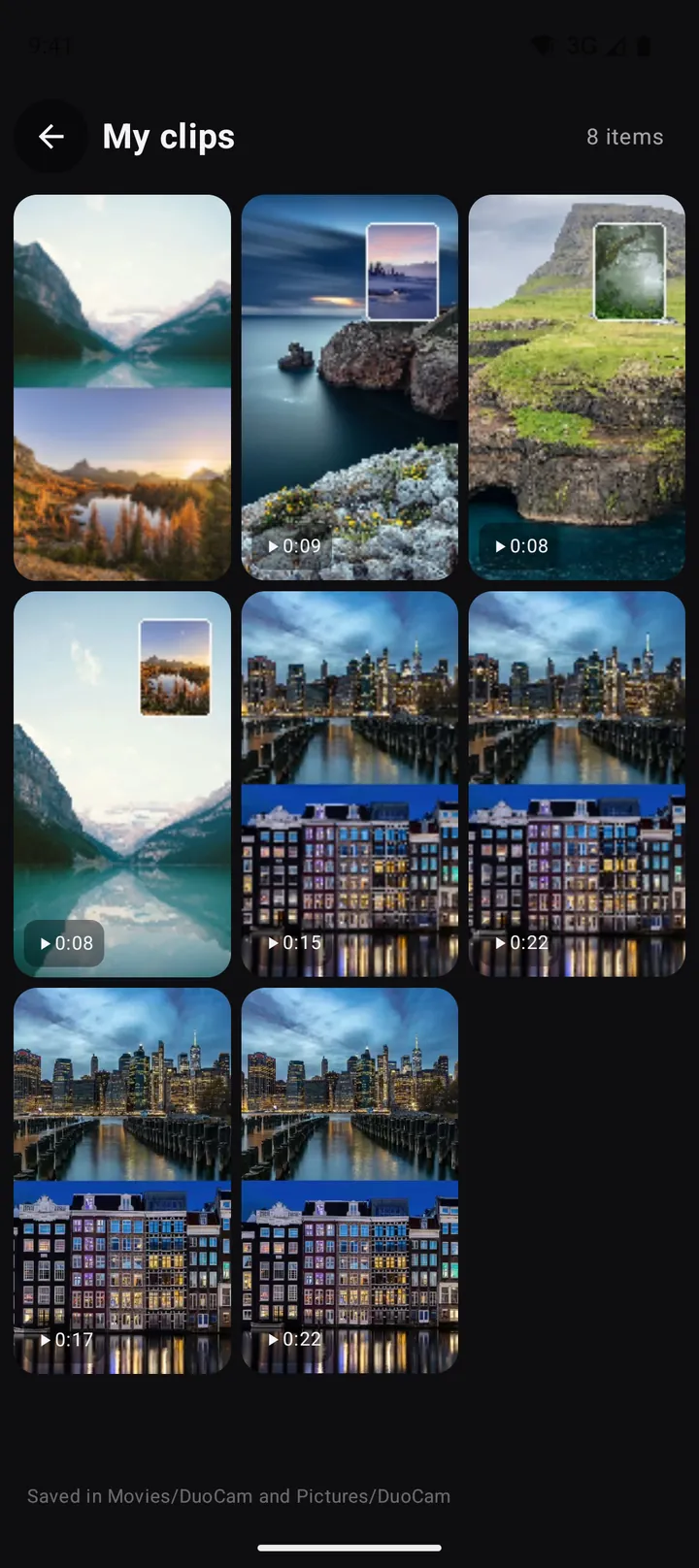
The photo is never uploaded. There is no account and no watermark.
Dual photo ideas
- Travel postcards: a landmark in the frame, your face in the corner.
- Food diaries: the dish in the main frame, your expression in the window.
- Milestones: the first day of school, the new home, the finish of a marathon, with the photographer finally included.
- Behind the scenes: a photographer's view of the shoot, with their own face in the corner.
- Weather and seasons: the same view every month, with you in the window, for a year-long series.
- Couples and friends: one person on each camera, for a photo where nobody is left out.
Dual photo or dual video?
A photo is perfect for a moment; a video is better for a story. If you are not sure, record a short video in the same layout. Many gallery and editing apps let you save a still frame from a video later. For a sharp still, though, Photo mode is best: it saves a full-HD (1080p) JPEG of exactly what the viewfinder shows at the moment you press the shutter, even in the free version, where videos record at 720p.
On phones with one camera at a time
If your phone cannot run both cameras together, DuoCam still takes photos with the camera you choose, and you can swap between front and back. You can also pick a photo from your gallery as the inset, so the photo you take includes it in the small window. The compatibility guide explains more.
Make a dual photo series
A single dual photo is a nice memory. A series becomes a story. Some ideas for series that grow over time:
- One photo a day on a trip, always in the same layout, for a travel diary that shows both the places and how you felt there.
- The same spot every season: a tree, a street corner or a beach, with yourself in the window to show the passing year.
- A child growing up: a monthly photo of the child on the back camera and a parent on the front.
- Work in progress: a renovation, a garden, a painting, with the maker in the corner every time.
Keep the layout, the window corner and the format the same for a series. The consistency makes the changes between photos stand out.
Sharing dual photos
Dual photos are ordinary JPEG files, so they post to any social app or chat. In 9:16 they fill a phone screen in stories; in 1:1 (Pro) they fit square feeds without cropping. If you post to a platform that crops, check that the PiP window is not in the cropped area by previewing the post before you share it.
Photo quality explained
DuoCam builds a dual photo the same way it builds a video frame: both cameras are drawn into one picture in your chosen layout, then saved as a high-quality JPEG at full-HD size. That keeps the photo identical to what you framed in the viewfinder, window position and border included. For the sharpest result, hold still for a moment as you press the shutter, clean both lenses, and give the front camera enough light, since its sensor is smaller than the main camera's.
Frequently asked questions
How do I take a picture with the front and back camera at the same time?
In DuoCam, switch to Photo mode, choose a layout such as PiP or Split, and press the shutter. Both cameras are captured into one JPEG.
Where are DuoCam photos saved?
In Pictures/DuoCam on your phone. They appear in your gallery app and in DuoCam's own gallery.
Can I take a dual photo with a circle window?
Yes, with DuoCam Pro. Choose PiP, tap the PiP chip again and pick the circle shape and an optional border colour.
Is the photo uploaded anywhere?
No. Dual photos are saved on your phone only. There is no account and no watermark.
Why does my phone make a shutter sound even with the sound off?
Some countries require a shutter sound on every phone. In those regions it plays regardless of the setting.
Can I take dual photos if my phone records one camera at a time?
You can take photos with either camera and use a photo from your gallery as the inset in the small window.
What size are DuoCam dual photos?
Dual photos are saved as full-HD JPEGs in the aspect ratio you chose, showing exactly the layout you framed in the viewfinder.
Try it on your phone. DuoCam is free on Google Play, with no watermark and no account. Your videos stay on your phone.
Get DuoCam on Google PlayKeep reading
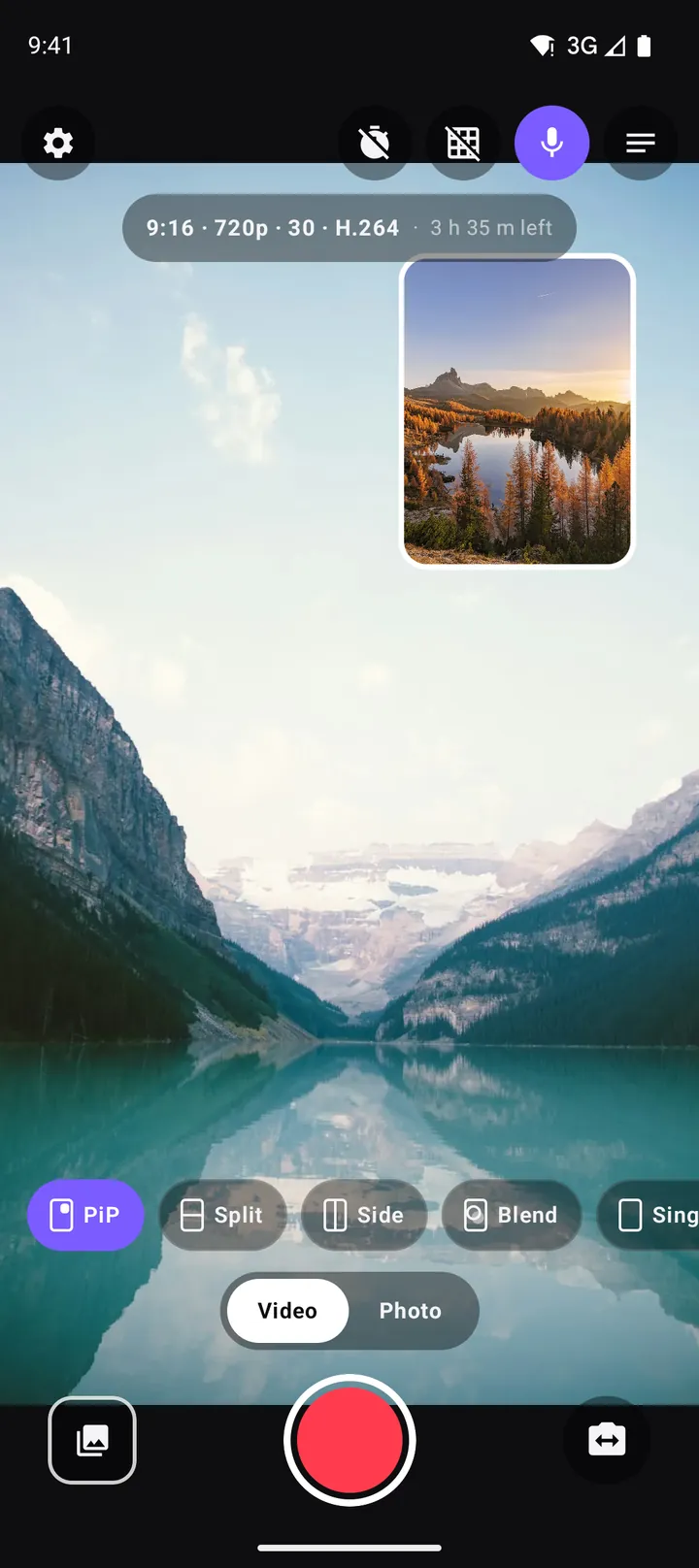
How to record with the front and back camera at the same time on Android
A step-by-step guide to recording both cameras at once on Android with DuoCam: picture-in-picture, split screen, dual photos, formats, the teleprompter and what to do if your phone runs one camera only.
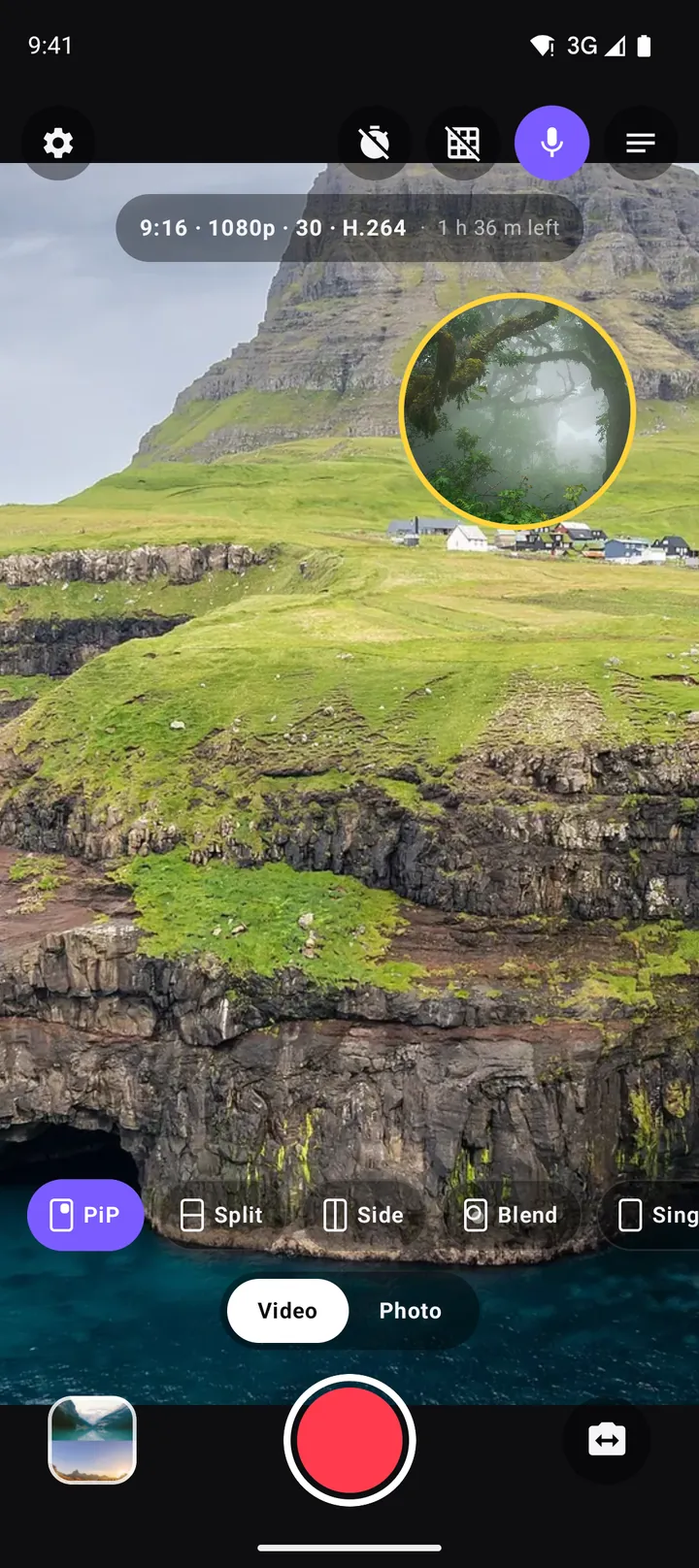
Picture-in-picture video on Android: how to record a PiP vlog in one take
How to record picture-in-picture video on Android with both cameras at once: moving and resizing the window, rounded, square and circle shapes, borders, swap, mirror and framing tips.
Split screen video on Android: top-and-bottom and side-by-side with two cameras
Record split screen video on Android with the front and back camera at once. When to use top-and-bottom or side-by-side, how to frame each half, the best aspect ratio, and ideas for split screen content.