 DuoCam
Screenshots only tell you so much about a camera app. This is a plain screen recording of DuoCam with its built-in demo scene: two free stock photos (a selfie for the front camera and a mountain lake for the back camera) stand in for the live cameras, so no real person or room is filmed, and every button, layout and message is the real app. In 28 seconds you see the picture-in-picture layout, a camera swap, the Split layout with its draggable divider, a dual photo and a short dual video. Below the video is a timestamped list of what happens, then the steps to do the same on your phone.
What you see in the video
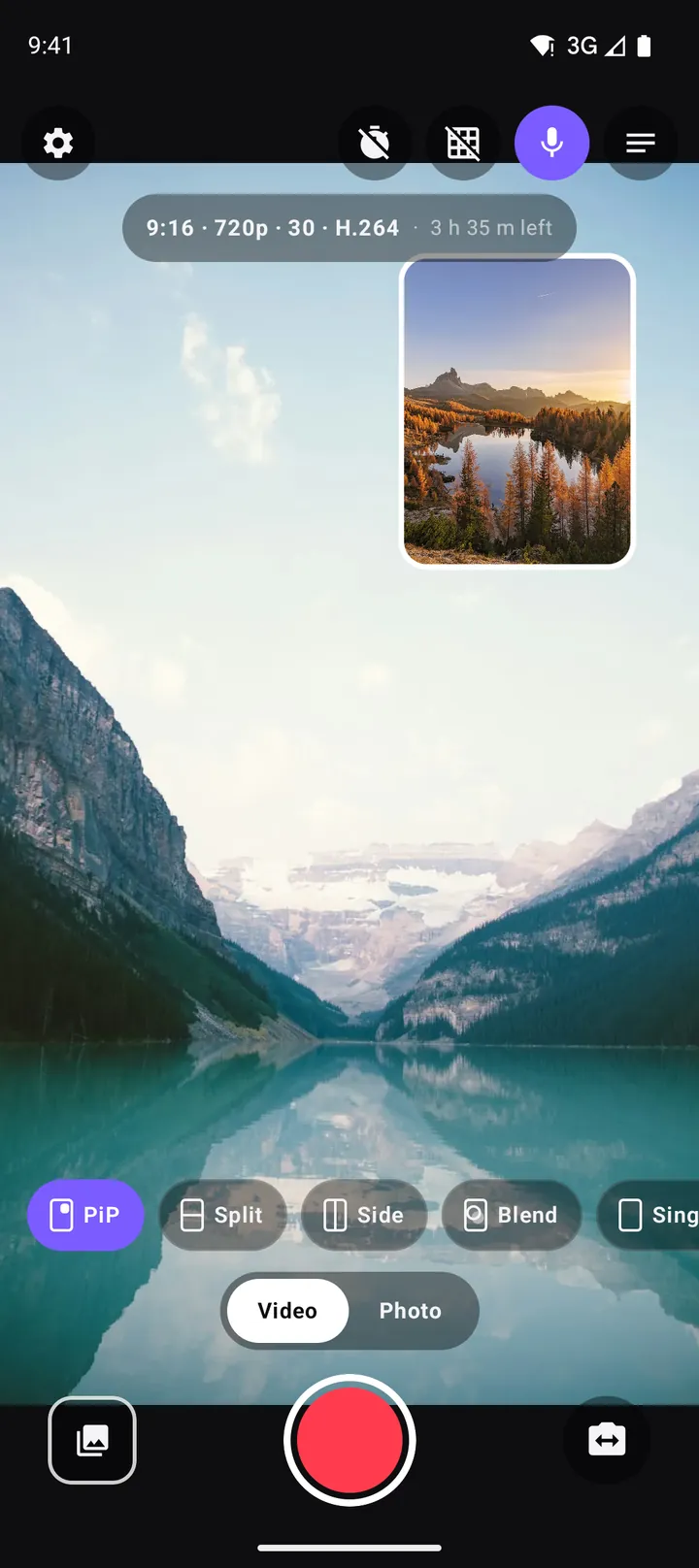
- DuoCam opens in the PiP layout: the back camera (the lake) fills the frame and the front camera (the selfie) sits in a small window in the top right.
- A tap on swap and the two cameras trade places. The selfie now fills the frame and the lake moves into the window.
- Swap again to put the back camera in front.
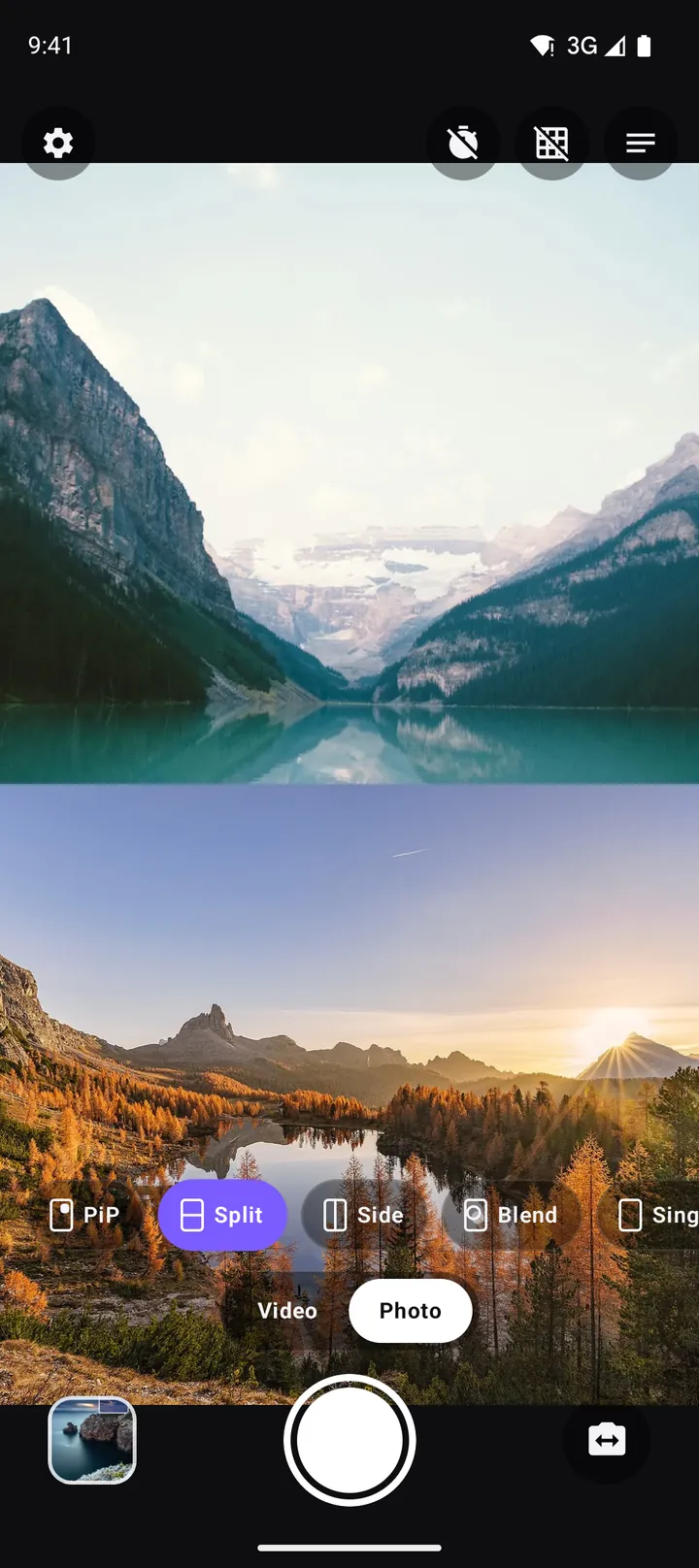
- The Split chip: the screen divides into a top half (back camera) and a bottom half (front camera). Dragging the divider gives either camera more room.
- Back to PiP.
- The shutter in Photo mode takes a dual photo. The message "Photo saved to Pictures/DuoCam" appears.
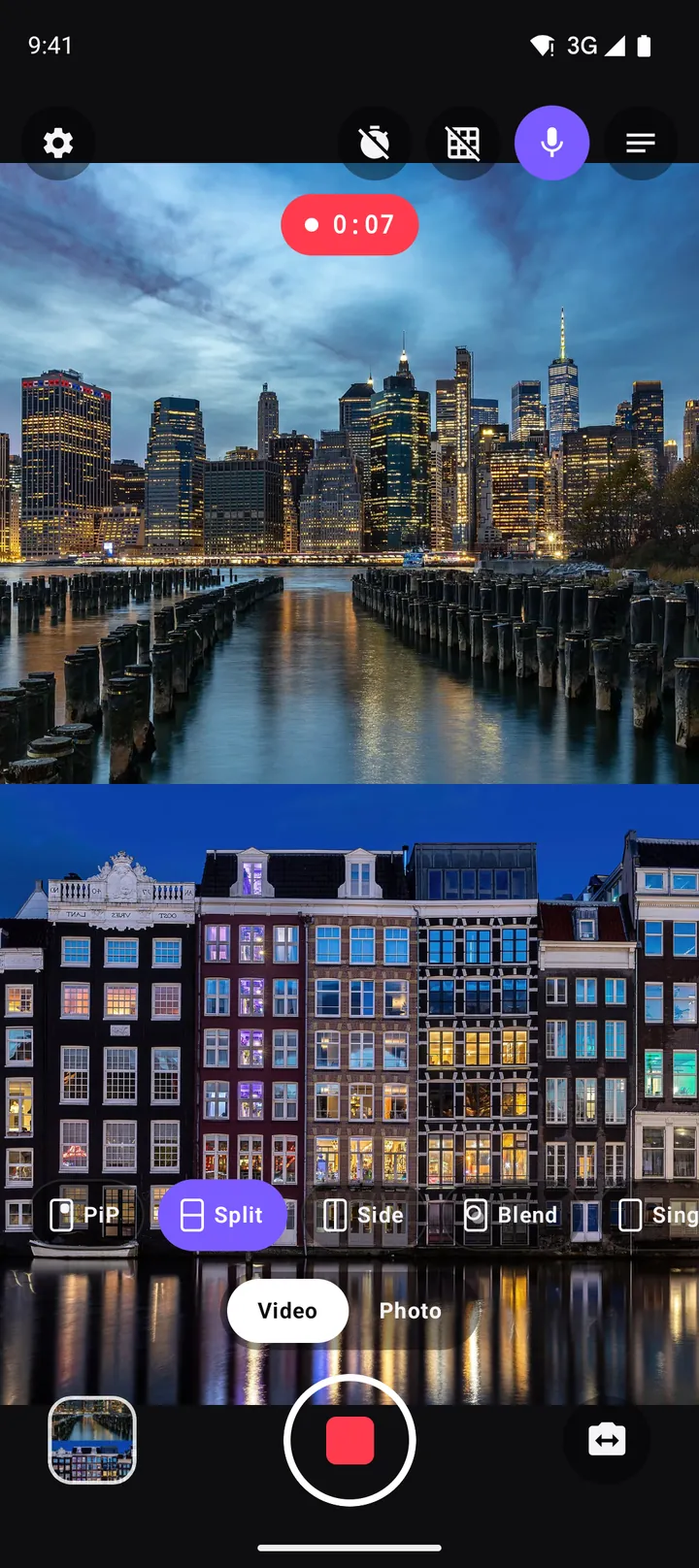
- Switch to Video and press record. The recording timer runs, and a badge shows the format: 9:16, 720p, 30 fps, H.264.
- Stop after about seven seconds. "Video saved to Movies/DuoCam" confirms the clip.
Along the bottom of the viewfinder you can also see the Side and Blend chips with a small Pro badge. They are not used in the demo.
How to do it yourself
- Install DuoCam from Google Play and open it. Allow the camera; the microphone is asked for the first time you record a video.
- Leave the layout on PiP, the default. Drag the small window to the corner where it covers the least, and pinch it to resize it.
- Tap swap to choose which camera is big. Do it before you record, or during a take, when it works like a cut between a wide shot and a close-up.
- Try Split when both views matter equally, for example a conversation or a reaction.
- For a picture, stay in Photo and press the shutter. Both cameras are captured in one image, in the layout you see.
- For a clip, choose Video, press record, and press again to stop. The layout is drawn into the file as it records, so there is nothing to edit afterwards.
The layout chips, free and Pro
The row of chips under the viewfinder is where you choose how the two cameras share the frame:
- PiP (free): one camera full frame, the other in a window you can drag and pinch. Tap the chip again for the PiP style sheet. The PiP guide covers it in detail.
- Split (free): top and bottom halves, as in the video. See the split screen guide.
- Side (Pro): side-by-side halves, which suit landscape video.
- Blend (Pro): the two cameras mixed into one picture, like a double exposure. The Blend guide explains it.
You can switch layouts during a recording too, and the change is saved in the video the way you see it on screen.
Where the photo and video go
The two messages in the demo are the whole story: dual photos are saved to Pictures/DuoCam and videos to Movies/DuoCam. They show up in Google Photos or any gallery app like any other picture or clip, and in DuoCam's own gallery from the thumbnail next to the shutter. Nothing is uploaded and you do not need an account.
The badge you see while recording is the free default: vertical 9:16 at 720p, 30 fps, H.264, which uploads quickly to Shorts, Reels and TikTok. The video settings guide explains the other formats, including the higher resolutions and HEVC that come with Pro.
If your phone runs one camera only
Recording both cameras at once needs a phone that can run its front and back cameras at the same time, and not every Android phone can. When a phone cannot, DuoCam says so with a banner and records one camera at a time. You can still swap between front and back, take photos, use the teleprompter and every format, and you can pick a photo or clip from your gallery as the inset. The compatibility guide explains how to check your phone.
Try the same on your phone. DuoCam is free on Google Play, with no watermark and no account. Your videos stay on your phone.
Get DuoCam on Google PlayKeep reading
How to record with the front and back camera at the same time on Android
A step-by-step guide to recording both cameras at once on Android with DuoCam: picture-in-picture, split screen, dual photos, formats, the teleprompter and what to do if your phone runs one camera only.
Dual photos: take a picture with the front and back camera at once
How to take a dual photo on Android that captures the front and back camera in one picture: layouts, framing, light, where photos are saved and creative ideas.
How to vlog with one phone: the dual camera method
A practical guide to vlogging with just one Android phone: record yourself and the scene at once, plan shots, light and sound, battery and heat, and share-ready formats.